cc-class Interactive Classroom · User Manual
cc-class is a cross-platform, LAN-based classroom management suite for schools, university labs, training rooms and computer exam centers. It consists of two programs:
- Teacher (TeacherApp) — the teacher's "console": screen broadcast, monitor students, remote control, lock screens, check-in, exams, file distribution, and more.
- Student (StudentApp) — installed on every student PC; it starts automatically at boot, finds the teacher machine by itself and connects, then receives the teacher's commands.
You do **not** choose which app a machine runs.
cc-class decides whether a machine is a teacher or a student automatically, based on the computer name, and manages the desktop shortcuts for you. See 👉 Teacher vs Student auto-detection.
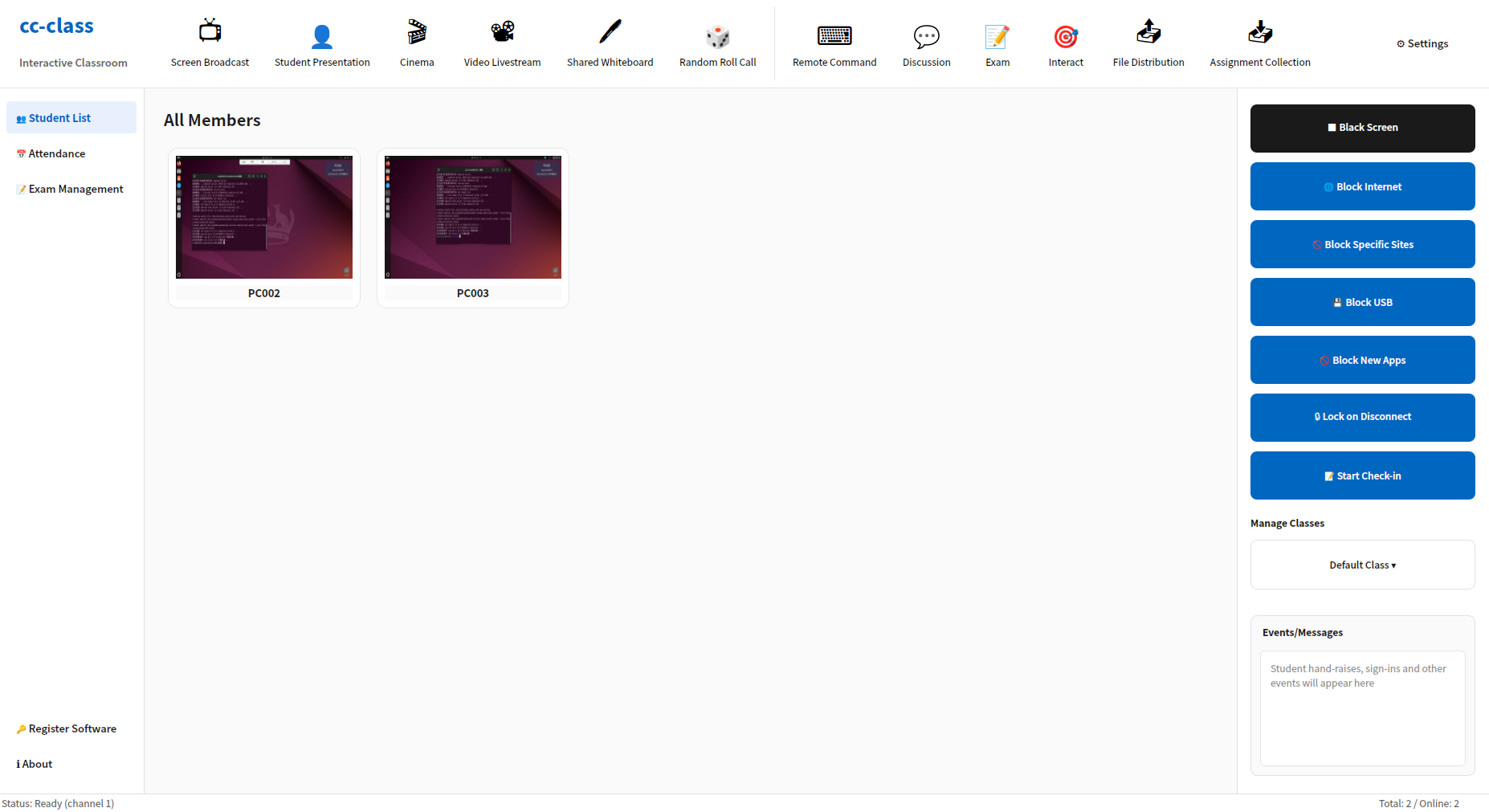
Suggested reading order
| Step | Topic | Link |
|---|---|---|
| ① Read first | How teacher / student machines are told apart (by computer name); how shortcuts are handled automatically | Auto-detection |
| ② Install (Windows) | One installer sets up both apps and builds the correct shortcut by machine name | Windows install |
| ③ Install (Linux) | .deb install, offline bundle, systemd services, Wayland→Xorg | Linux install |
| ④ Teacher | What every toolbar feature does, with screenshots | Teacher Guide |
| ⑤ Student | What students see, how they auto-connect, reconnection | Student Guide |
| ⑥ FAQ | Can't connect, wrong role, Wayland, channels, etc. | FAQ |
System requirements
- OS: Windows 10/11 (64-bit); Ubuntu 20.04/22.04/24.04 and domestic (Xinchuang) systems (Loongson/Phytium/Kunpeng arm64).
- Network: teacher and students must be on the same LAN/subnet, with UDP
11100and TCP11100–11105open between them. - Display session (Linux): must be an Xorg session (the installer configures this automatically).
Licensing
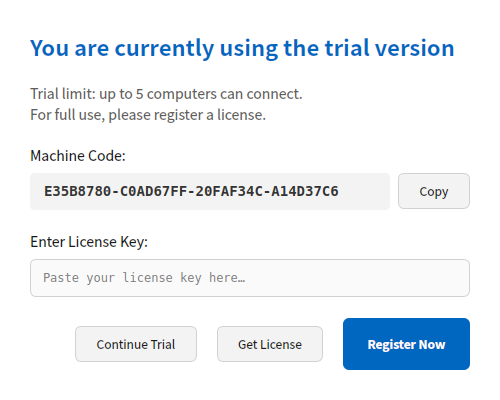
The software works in trial mode out of the box; you can start the trial via self-service QR-code registration, renewable three times, with unlimited credits (no cap on the number of connected machines). For a long-term, formal license, open Register Software in the teacher app and send the on-screen "machine code" to your vendor for a license key.
All screenshots in this manual use the English interface; the software follows the system language automatically (Chinese/English/Japanese/Korean and more) with identical button positions.