Install (Windows)
The cc-class Windows installer is a single .exe containing the teacher app, the student app and the background service. Installed on any machine, it detects the role from the computer name automatically and creates the matching shortcut (see Auto-detection).
1. Before installing
Make sure the machine's computer name is set per your plan (teacher with
-Torteacher; students with plain names).- View/change:
This PC→ right-clickProperties→Rename this PC, then reboot.
- View/change:
The installer file looks like:
textcc-class_1.0.18_win-x64-setup.exe
Name first, install second
The installer reads the current computer name at install time to decide whether to create the "Teacher" or "Student" desktop icon. Set the name and reboot before running the installer. If you renamed after installing, just run the installer again to fix the icon.
2. Installation steps
- Right-click the installer → Run as administrator (needed to write to
Program Files, register the service and configure the firewall). - Follow the wizard. It automatically performs:
| Item | Details |
|---|---|
| Program files | TeacherApp.exe, StudentApp.exe, StudentService.exe, tools\ffmpeg.exe (recording) |
| Install folder | C:\Program Files\cc-class Electronic Classroom\ |
| Runtime | detects and installs the Visual C++ runtime (vcredist x64) as needed |
| Desktop icon | Teacher: …-Teacher.lnk (→ TeacherApp)Student: …-Student.lnk (→ StudentApp)(removes any leftover wrong-role icon) |
| Background service | registers StudentAppService (auto-start, auto-restart on crash) to guard the student app |
| Auto-start | adds ccClassStudent to the registry …\Run |
| Firewall | allows UDP 10001 and TCP 11100–11105 (inbound + outbound) |
3. Running
- Teacher machine: double-click the cc-class …-Teacher desktop icon.
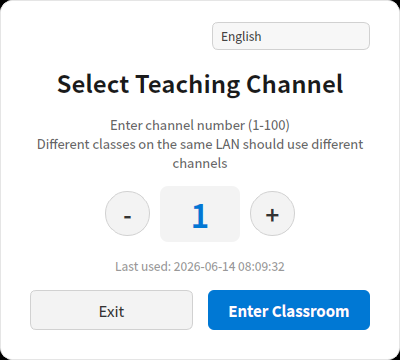
On first launch you select a teaching channel (use different channels for different classes on the same LAN to avoid interference); default
1.
Then the main window opens and students appear in the list as they connect.
- Student machine: nothing to launch. The background service starts the student app at boot and connects to the teacher. The student app stays hidden, showing only a small auto-hiding toolbar at the top of the screen.
4. Uninstall
Settings → Apps → cc-class Electronic Classroom → Uninstall. This removes the program, the service, the auto-start entry and the desktop icon.
5. Network & ports (for troubleshooting)
| Purpose | Protocol/port |
|---|---|
| Teacher advertises itself (discovery) | UDP 11100 |
| Student connects to the teacher (control channel) | TCP 11101 |
| File / video multicast | 239.1.1.1:10001 |
If a student stays "Not connected", check the firewall, that both are on the same subnet, and that the teacher app is running. See FAQ.