Student Guide
The student app (StudentApp) is designed to be zero-effort: it starts at boot, finds the teacher by itself, connects, and reconnects automatically if dropped. Students barely notice it — only a small auto-hiding toolbar at the top of the screen.
1. How the student finds the teacher
cc-class uses teacher broadcasts, students listen — you never type the teacher's IP:
- Once started, the teacher broadcasts a "beacon" every 1 second on the LAN (UDP port
11100, carrying its channel number and control port). - The student app listens on UDP
11100. When it receives a beacon on the matching channel, it reads the teacher's IP and opens a TCP connection (control port11101). - After connecting, the student reports its hostname, login username and MAC address, and appears in the teacher's student list.
Teacher ──(every 1s UDP beacon: I'm on channel 1, IP=x.x.x.x)──▶ LAN
Student ◀─listens on UDP 11100─ channel match ─▶ connect TCP 11101 ─▶ report host/user/MAC ─▶ online
Channels must match
A student only connects to a teacher on the same channel (both default to 1). If several classes run at once in one room, give each class a different channel so they don't interfere.
Automatic reconnection
- If the teacher closes temporarily or the network hiccups, the student retries the last teacher every 3 seconds, forever, and comes back online automatically.
- The student remembers the last teacher and tries to reconnect at boot, without waiting for a beacon.
- If the teacher enabled Lock on Disconnect, a dropped student auto-locks (black screen) and unlocks once reconnected.
There is no "enter IP" option
cc-class relies entirely on auto-discovery + remembered reconnection; there is no setting to type the teacher's IP. Ensure teacher and students are on the same subnet, on the same channel, with UDP 11100 open.
2. What students see
Top toolbar
Normally hidden at the top edge; move the cursor to the very top to reveal it:

| Button | Action |
|---|---|
| ✓ Connected / ✗ Not connected | connection status to the teacher (green = connected) |
| Raise Hand | signal the teacher; the card shows a raised hand |
| Ask for Help | send a help request (if the teacher allows) |
| Submit Assignment | available after the teacher starts collection; opens the submit window (screenshots + files together) |
| Discussion | join the class chat once the teacher allows it |
Class check-in
When the teacher starts check-in, a full-screen sign-in dialog appears asking for name, class and student ID. After "Confirm" it is remembered and resubmitted automatically on reconnect.
Locked screen
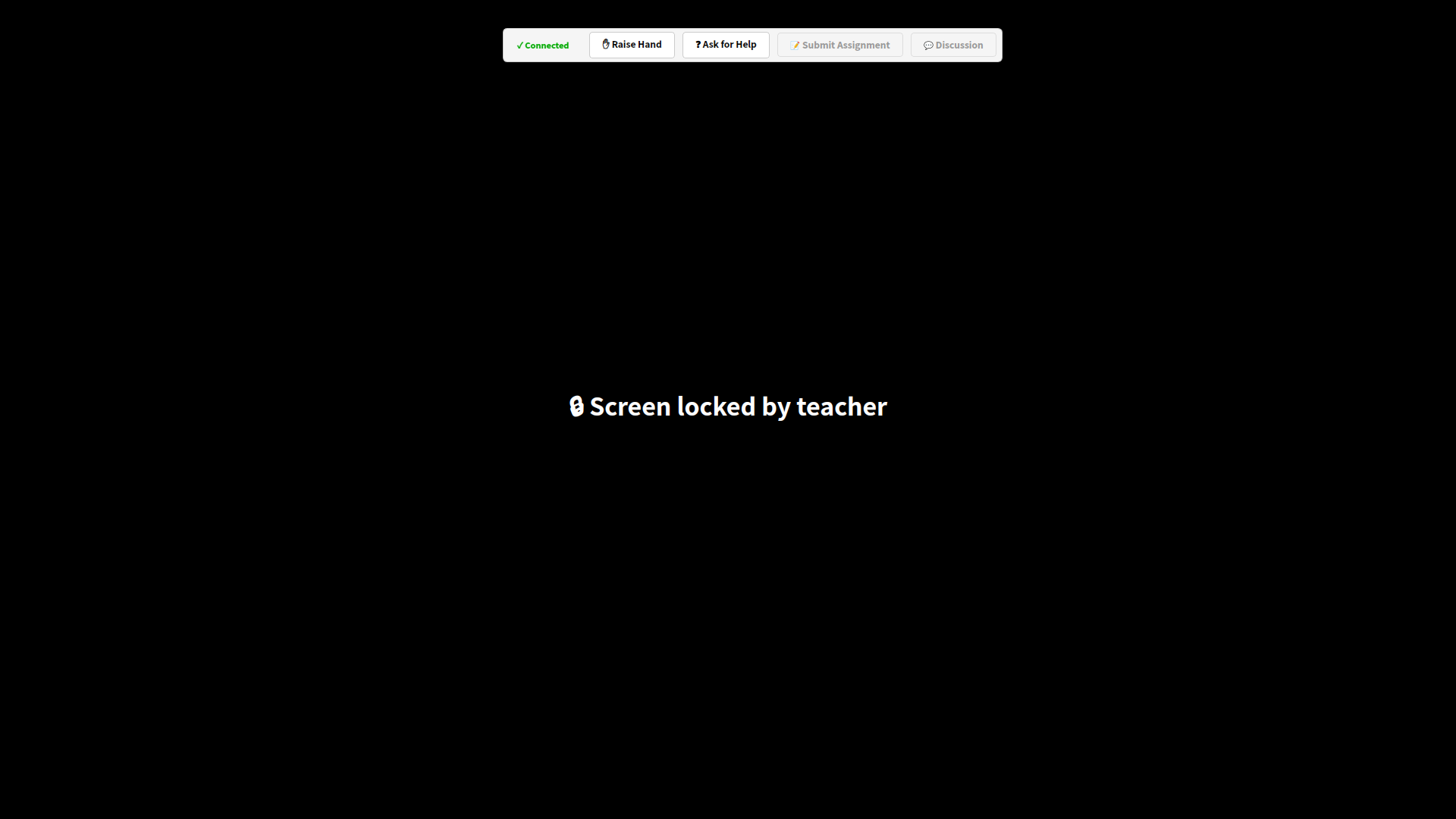
When the teacher uses "Black Screen" or lock-on-disconnect triggers, the machine goes full-screen black with a message; the keyboard and mouse are taken over:
Receiving broadcast / presentation / cinema
When the teacher broadcasts, presents or plays cinema, a full-screen window appears automatically. While watching a broadcast, press F2 to screenshot a note, saved to Documents/课堂笔记/ (Class Notes).
Submit assignment
After the teacher starts collection, click "Submit Assignment", then capture a screenshot or upload images and drag in assignment files, and submit them together.
Discussion
Once allowed, click "Discussion" to open the chat — text, emoji, images, files, screenshots, with Ctrl+V paste and drag-and-drop.
Exam
When an exam starts, a full-screen exam window appears, supporting single/multiple choice, true-false, fill-in and short answer, with a countdown; it auto-submits when time runs out.
3. Self-protection
- The background service watches the student process and restarts it if it crashes, so control is never interrupted.
- Even if the student app is mistakenly installed on a teacher machine, it exits automatically (see Auto-detection).
Next 👉 FAQ