Lab Access and Users
Require a sign-in before students can use a lab computer. The teacher app shows who is using each computer.
Open it from: left navigation > Lab Management
Manage accounts
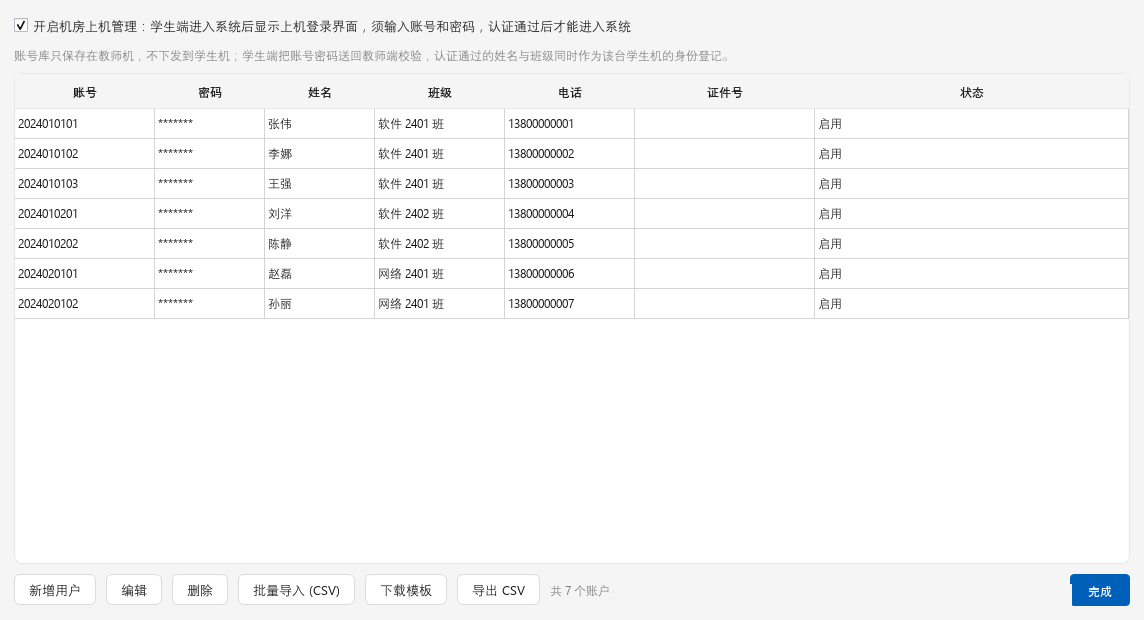
Each row stores username, password, name, class, phone, ID number, and enabled status.
| Button | What it does |
|---|---|
| Add / Edit / Delete | Maintains accounts |
| Batch Import (CSV) | Imports a roster. Matching usernames are updated |
| Download Template | Saves a CSV template |
| Export CSV | Exports all accounts |
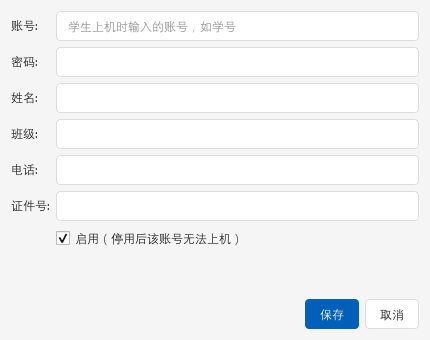
Disable an account to stop sign-in while keeping the record.
Turn on sign-in
Turn on Lab Sign-In in Lab Management. Student computers show a full-screen sign-in window.
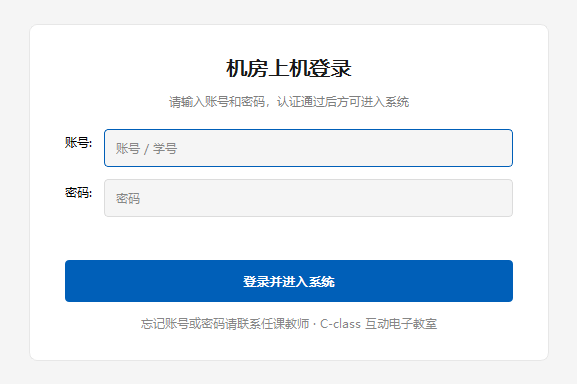
After a successful sign-in:
- The name and class appear on the student card.
- The event panel logs the result.
- The sign-in window cannot be closed or bypassed with
EscorAlt+Tab.
The teacher app must be online
Accounts are stored only on the teacher computer. If it is off or unreachable, students stay on the sign-in screen. To let them in temporarily, turn off Lab Sign-In when the teacher app is available.
Computers that connect later also receive the setting.
Export attendance
Attendance can be saved in three formats:
| Format | Best for |
|---|---|
| txt | Printing |
| html | Viewing in a browser and sharing |
| csv | Opening in Excel |
Upgrade both apps
If student computers run an older version, the sign-in setting has no effect.