Monitor Management
View student screens and network cameras in one window for lab supervision and exam monitoring.
Open it from: top toolbar > Monitor Management
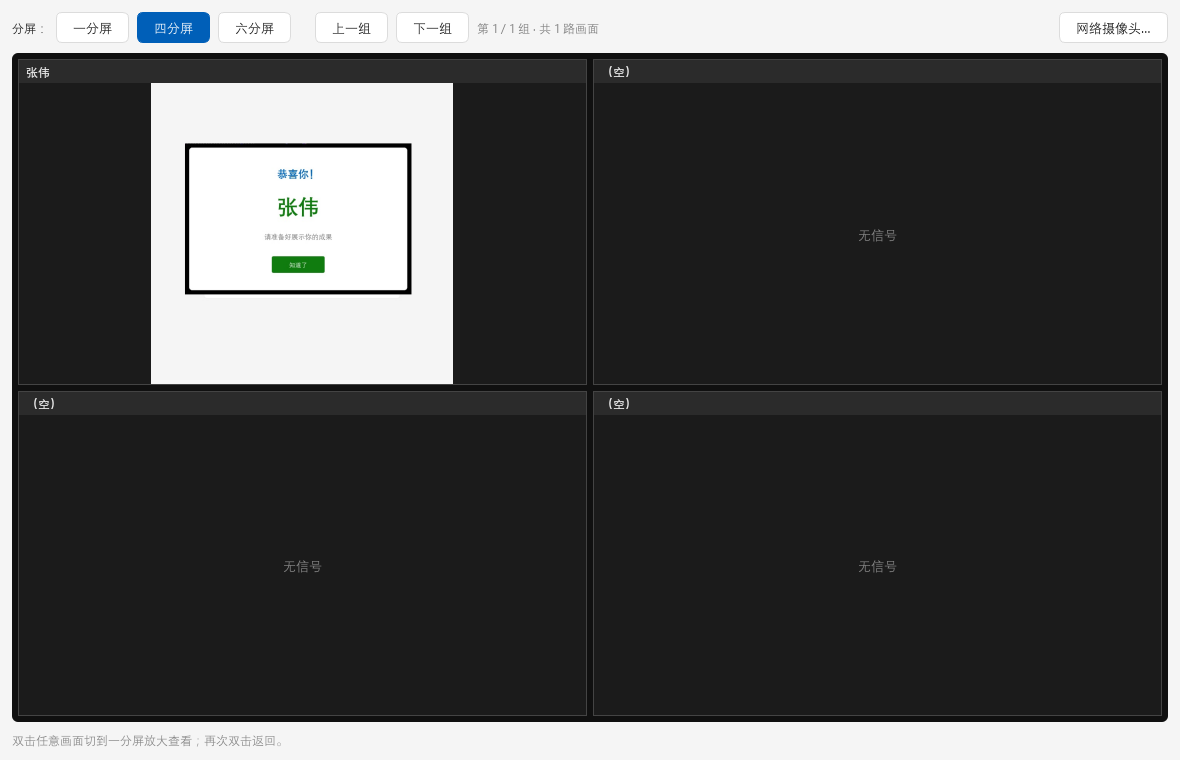
Use it
- Select Monitor Management.
- Choose students or cameras.
- Choose 1, 4, 5, or 6 panes, or a free layout.
- Use Previous Group / Next Group to page through more feeds.
- Double-click a pane to enlarge it, and double-click again to return.
Full screen and control
| Action | How |
|---|---|
| Full screen | Select Full Screen or press F11 |
| Exit full screen | Press Esc or F11, or select Exit Full Screen |
| Operate a student computer | Select Control |
Keyboard during control
When control is on, key presses go to the student computer. Use the Exit Full Screen button.
Static screens use less bandwidth, and only visible panes request HD video.
Add network cameras
You can add up to six.
- Select Network Cameras.
- Check Enable.
- Enter a name and choose a brand.
- Enter IP, port, username, password, and channel.
- Choose main stream for detail or substream for lower bandwidth.
- Select Save.
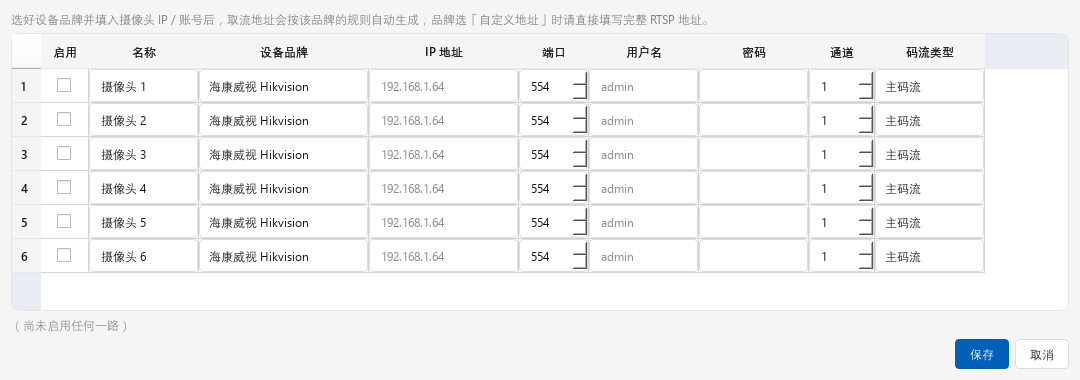
Supported options include Hikvision, Dahua, Uniview, Tiandy, Huawei, generic ONVIF, and custom URLs.
On Linux, camera streaming requires ffmpeg:
bash
sudo apt install ffmpegOpen at startup
text
--channel 1 --guest --monitorSee Startup Options.
Troubleshooting
| Symptom | Fix |
|---|---|
| No signal | Confirm the student is online or the camera URL is correct |
| No camera video | Test the RTSP URL in VLC |
| Choppy video | Use fewer panes or the substream |
| Cannot exit full screen | Select Exit Full Screen while control is on |