System Settings
Open it from: Settings > System Settings
Screen
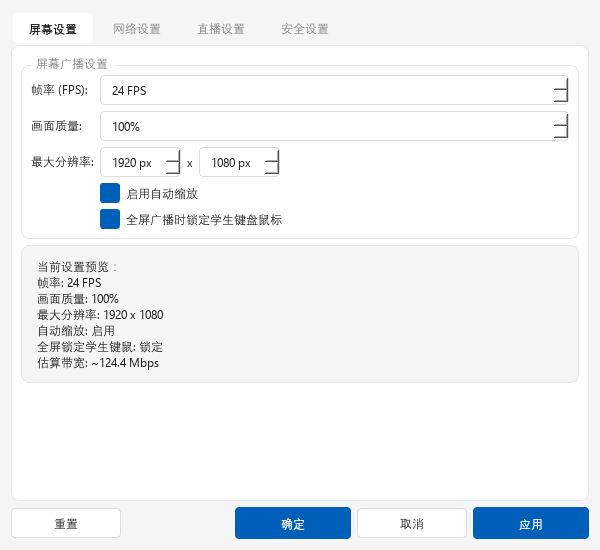
| Setting | Default | Description |
|---|---|---|
| Frame rate | 30 FPS | Higher is smoother but uses more bandwidth |
| Quality | 100 | C-Class lowers it automatically when needed |
| Max resolution | 1920 x 1080 | Larger screens are scaled down |
| Auto scaling | Off | Adapts to different resolutions |
| Lock student input in full screen | On | Window mode does not lock input |
The preview shows estimated bandwidth.
If broadcasts are choppy
Lower to 15 FPS and 1280 x 720, then try another transport or check your switches and cables.
Network
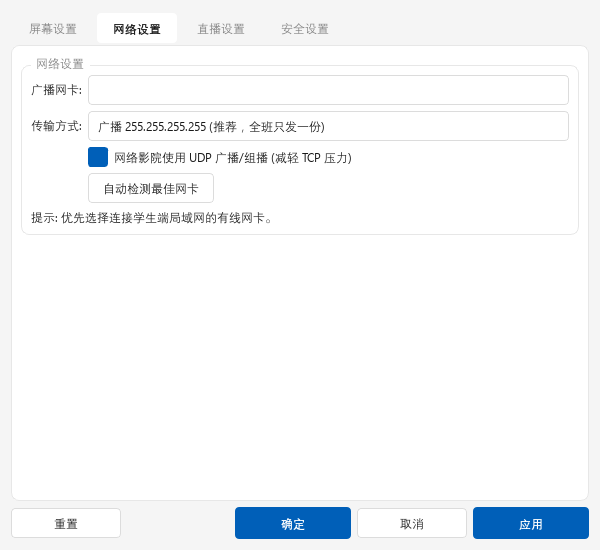
| Transport | Description | Use when |
|---|---|---|
| Broadcast 255.255.255.255 | Sends one copy to the class | Recommended |
| Multicast 239.1.1.1 | Sends only to subscribers | Switch supports IGMP |
| Unicast | Sends a separate copy to each student | Cloud desktops, or other modes fail |
- Network Cinema uses UDP: lowers TCP load for Network Cinema.
- Broadcast adapter: use the wired adapter connected to students. Select Auto Detect Best Adapter if unsure.
Live settings
- Local camera: select Refresh Devices and choose a camera.
- RTSP: enter the URL and select Start Test. A preview confirms it works.
Security
Set the student admin password used for tray exit, uninstalling, and Guard Mode.
| Setting | Description |
|---|---|
| Authentication | Custom password or Use cloud desktop terminal password |
| New / Confirm password | Leave blank to keep the current password and send only the mode |
Saving sends the setting to all online students.
Cloud desktop labs
Choose Use cloud desktop terminal password before selecting OK. See Passwords.
Speech to Text
Shows the speech component status. Windows includes it. On Linux, download it or import a component package.