Changelog
Cloud Desktop V5 Bug Fixes
| Comparison | vDisk5 | vDisk3/IDV 3.0 |
|---|---|---|
| System corruption on restart during download | Fixed. If a download is incomplete, the data will not be invalidated and the terminal can continue to operate normally. The download can be stopped and will resume on the next startup. New data does not take effect until the download is complete. | Not fixed. In the old version, if the terminal being downloaded was restarted during the download, the image would be corrupted on startup, causing a mandatory blue screen. Please be careful — once a download starts, it must be completed. |
| Same-version resume (checkpoint resume) | If the desktop being downloaded has not changed versions, the download resumes. Otherwise it re-downloads the version update. Before the download starts, the speed may appear as 0 — this is normal while previously downloaded data is being scanned. (This does not refer to incremental updates. Incremental updates are still supported. During an incremental update, if the download stops, the increment supports resume on shutdown/restart. The progress bar will still start from 0 during a resume, but the progress bar visibly speeds up; observe the available capacity, which will continue to decrease.) | Not supported. If the download is interrupted by a restart, it will re-download from the beginning after startup. |
| Background download | Restarting or shutting down during a download does not affect the update — it resumes on the next startup. | Not supported. Restarting the computer during a background download will corrupt the current system. The old version required opening multiple desktops — if one was corrupted, another would be used to complete the download and restore normal operation. |
| Zero-speed optimization | When a zero-speed condition is detected on the current download link, automatic optimization is applied from that point to prevent the download from stalling. | The download would directly stall. |
| Automatic download grouping | Precisely allocates different NIC speeds to different links for downloading. | Imprecise — can allocate incorrectly. |
| Automatic download matching | During download, computers in the same group are assigned to the same link as much as possible based on the image, improving download speed. | Not supported. |
| Automatic clearing of failed tasks | Supports automatic clearing of failed tasks. | Frequently encounters "Failed to get download task." |
| Dual-disk cross-partition data corruption | Fixed. | Not fixed. |
| Dual-disk sda/sdb mode — local settings not saved | Fixed. | Not fixed. |
| Dual-disk automatic priority — SSD preferred for caching | Fixed. | Not fixed. |
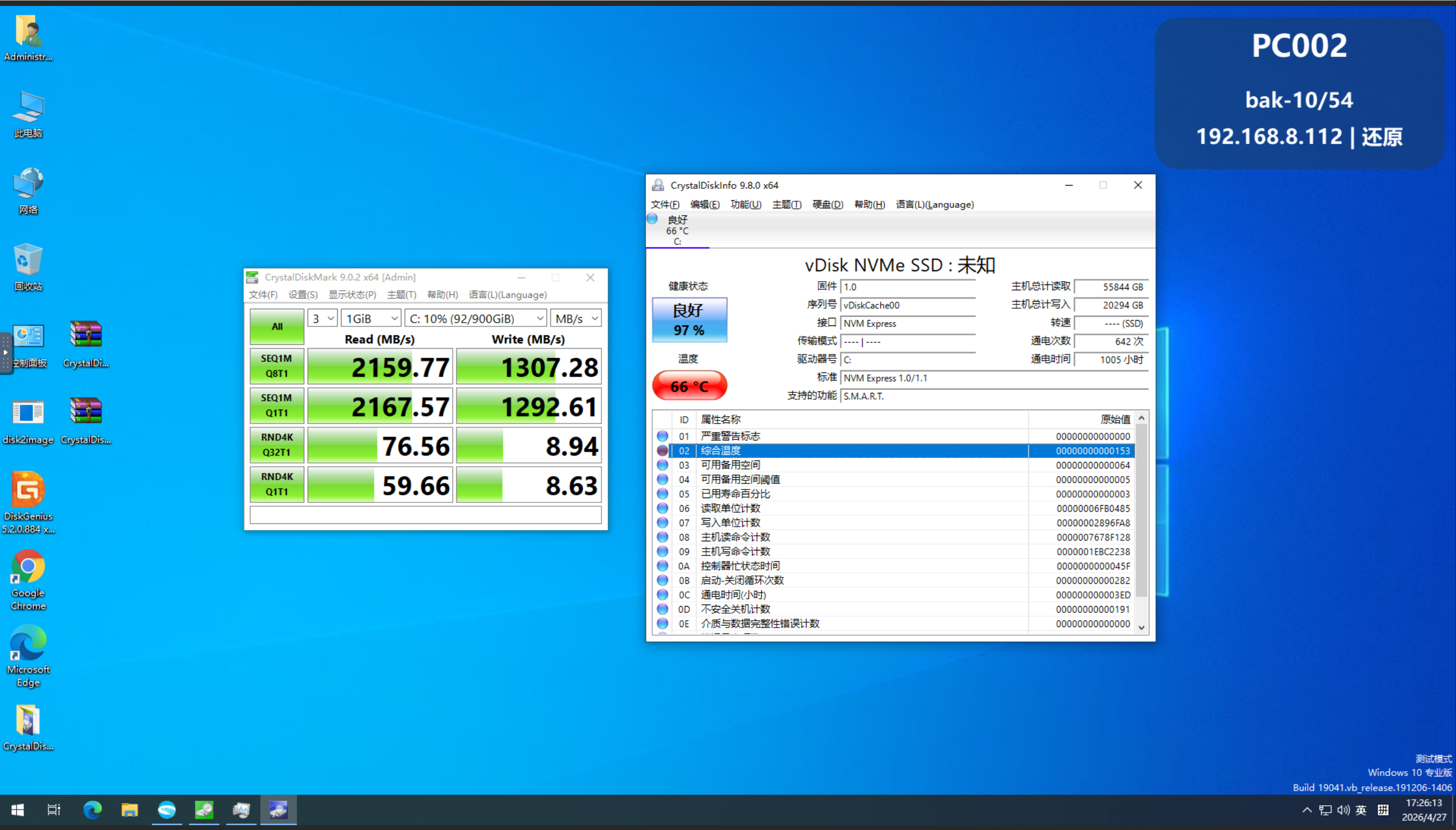
| SSD performance optimization | SSD performance has been optimized — read speeds can now exceed 1 GB/s. When operating in SSD/HDD dual-disk combination mode, speed is reduced because data must also be written to the mechanical disk simultaneously. While this is imperceptible during normal use, it is noticeable when using benchmarking tools. | Maximum 300 MB/s read. |
| SSD gradually slowing down over time | Fixed. | SSD gets progressively slower over time, manifesting as extremely slow startups later on. This is more pronounced on SATA interface SSDs and some NVMe SSDs. Reformatting with NVMe can restore performance, but the problem recurs after a period of use. As this continues, excessive garbage data will eventually cause SSD failure. |
| Unable to exit update mode after image update failure | As long as the update fails, regardless of whether it was uploaded, Ctrl+X can be used to repair. Ctrl+X cannot guarantee 100% release of the disk lock; if the release fails, unlock it from the console before continuing the update. | Requires re-downloading. |
| Server crash when uploading and downloading occur simultaneously | Fixed. | Prone to crashes when uploading while downloading. |
Cloud Desktop V5 New Features
| New Feature | Description | Notes |
|---|---|---|
| Network data disk / semi-read semi-cache data disk | Supports creating a semi-read semi-cache data disk. During read/write operations, the disk automatically caches data locally — cache as you use — to resolve the problem of small hard drives storing resource files. | None |
| Personal network drive | Creates a network data disk based on user accounts. The data disk is a standard virtual disk, not a web-based drive, and functions identically to a local C drive. | Only available within environments where the cloud desktop is deployed; no data audit risk. Not available in the Basic version. |
| Network boot / semi-read semi-cache boot | Supports direct network boot and can achieve semi-read semi-cache boot — cache as you use. | Requires the server to be permanently online; generally used only in combination with full caching. |
| Xinchuang (domestic hardware) support | Compatible with common Xinchuang machines on the market. | None |
| Virtual switch | A virtual switch can be configured — the more accurate the configuration, the faster the download speed. | None |
| Graphical ROM interface | A fully graphical ROM interface providing manual download, manual disk clearing, log viewing, download functions, etc. | None |
| disk2image tool | After the client is installed, an image creation tool automatically pops up. Using this tool, you can directly upload the local image to the server with no extra steps required. | When creating a template client, do not partition C drive too large — if 200 GB is enough, aim for 200 GB (it can be expanded later). The larger the partition, the more fragmented it becomes. |
| Network-enabled boot menu | Selecting the menu provides network connectivity. After connecting, access modes and other information are automatically synchronized. The new menu also provides many maintenance shortcuts — see the Boot Menu Usage Guide for details. | The new menu and the original plus1x64.efi are combined into one. On the first boot, a prompt will indicate the menu cannot be reached — this is normal. After the timeout, the network ROM will automatically start with no action required. |
| Desktop version collection | Collects all downloaded and not-yet-downloaded desktops, matches them against the server, and allows the console to report which computers have downloaded and which have not. | None |
| SSD health status | Every 30 minutes in the background, SSD health information from all terminals is collected and a comprehensive assessment is returned. | Requires a disk that supports standard NVMe SMART. |
| Software installation query | Automatically collects the software installed on each desktop, including version information. | None |
| Network access control | Supports setting LAN only / China only / Full Internet access. | No complex configuration needed; can easily block external network access. |
| Desktop sidebar | Similar to the Windows 7 sidebar — an information panel appears on the right side. The background is in HTML format and supports adding hyperlinks. | None |
| Desktop wallpaper | Allows desktop wallpaper to be set directly from the console; synced on startup. | None |
| Abnormal terminals | Automatically tracks terminals that fail to start or have been offline for an extended period. | Requires the boot menu to be enabled with a timeout of 7 seconds or more. If too short, the terminal reports and then boots before it can be flagged. |
| NIC driver PNP | Works with the network boot feature. Allows NIC drivers to be injected into the image to be booted at startup. | None |
| Scheduled tasks | Supports standard cron syntax for scheduled shutdown, power-on, setting default desktop, etc. Also supports standard cron configuration format. | None |
| Cross-network remote support | Supports publishing a shared remote desktop link in restore mode / update mode and setting an expiry time. Write mode publishing is not supported. | None |
| Mini Program | Adds complete cloud desktop management features, including remote deployment, restart/shutdown, and desktop control. | Remote desktop is disabled when the terminal is in write mode. |
| Auto-learning / auto-optimization | Built-in auto-learning script. New computers default to having learning and auto-optimization enabled. Auto-optimization deletes updates for common software and extracts the Driver Genius installation files to C:\tools, triggering automatic driver installation in learning mode. | None |
| Desktop marketplace | Built-in common system images. Due to ISP cross-network/cross-region restrictions, downloads may be slow. The marketplace includes common OS images and environments, such as system images, Loong Arch Linux environments, AI development environments, etc. AI-related features require configuring the AI gateway and signing a subscription contract to use the built-in KEY for AI teaching and development. | None |
Management Platform New Features
| New Feature | Description | Notes |
|---|---|---|
| IoT Management | Supports centralized management of surveillance / access control / air conditioning / lighting / central control | None |
| Login Authentication | Supports login authentication; customizable to support campus QR code login. Default uses username and password. One account can simultaneously use the network drive and log in with records kept. The login interface can be automatically customized in the backend, with automatic slideshow playback, announcements, etc. | None |
| Timetable | Can be imported manually or integrated via API; the middleware tool is open source. The timetable is the foundation for smart operations. | None |
| Smart Operations / Smart Operations Dashboard | Supports smart operations — can automatically open/close doors, power on/off, and use surveillance to perform AI classroom inspections based on the timetable. | None |
| Online Supervision | Supervision implementation based on cloud desktop + surveillance. Real-time classroom images come from surveillance; computer screen images come from cloud desktop monitoring. In addition to supporting traditional supervision, it also supports computer screen content analysis and automatic PPT material analysis with keyword matching. | None |
| Screen Monitoring | Keywords can be set to capture and save screenshots of screen content; also supports invoking surveillance cameras to record the scene. | None |
| Resource Center / Information Portal | Installation packages can be published in the resource center and retained. The information center supports viewing the desktop distribution of all classrooms, software installed on desktops, number of machines per classroom, machine configurations, experiment software hyperlinks, etc. | None |
Changelog
2026-04-26
- Client: Fixed installer package issue