How to Check Local Cache Download Status
Go to Desktop -> Cache Version Check
After entering the console, in the left menu under Desktop select Cache Version Check to open the version check page.
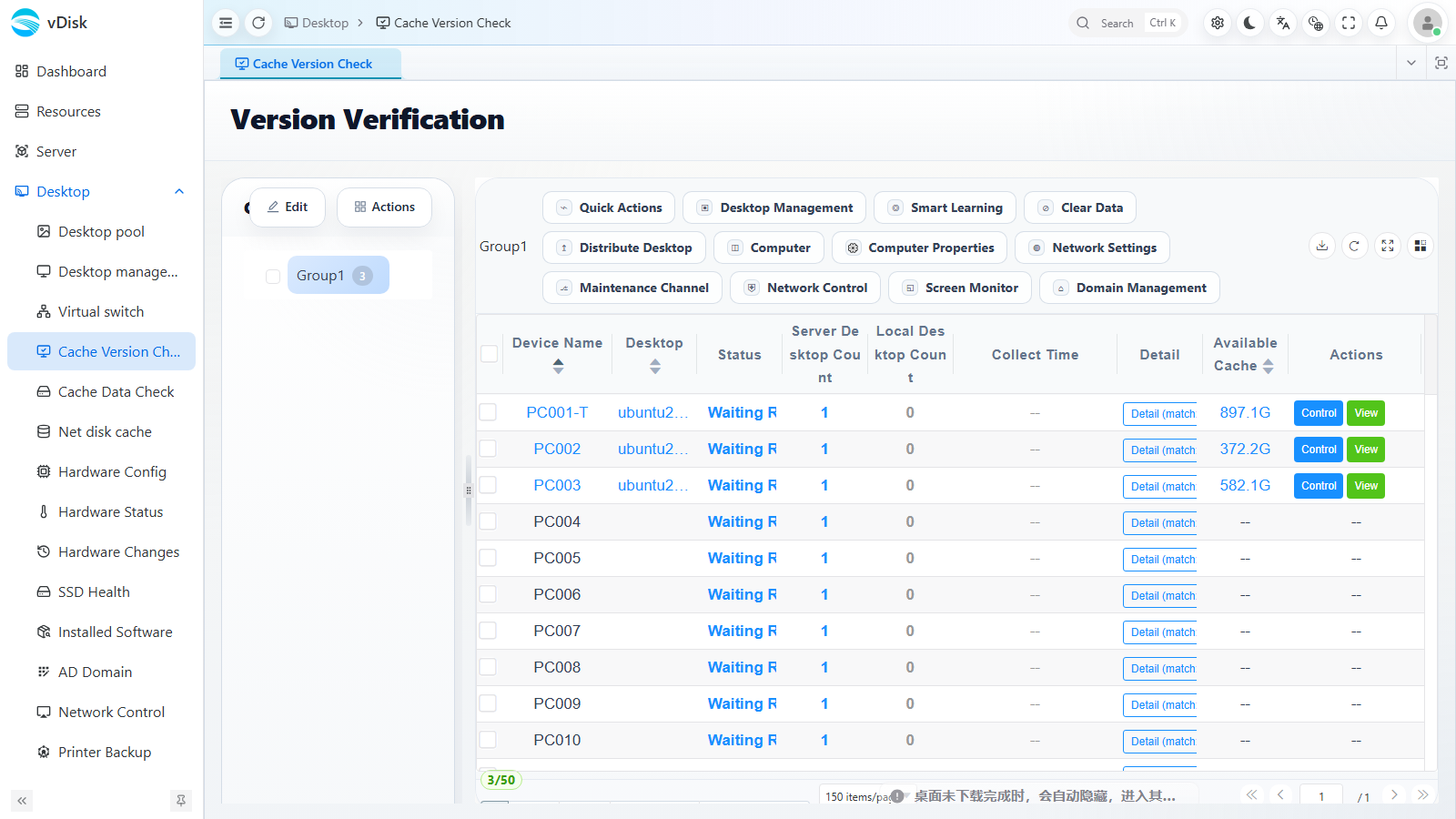
The page is organized by group and lists, machine by machine, each terminal's server desktop version and local desktop version, along with information such as the collection time and available cache. When a terminal's desktop count differs from the server, or its local version is not the latest, you can verify it directly here.
The main purpose of this operation is to check whether terminal desktops are up to date and whether any have been missed during distribution. It is well worth running a check before the start of a term or before exams; for large-scale desktop management, this is a very useful feature.
Working with Cache Data Check
If you need to further verify whether the local cache data is complete, you can view it under Desktop -> Cache Data Check.
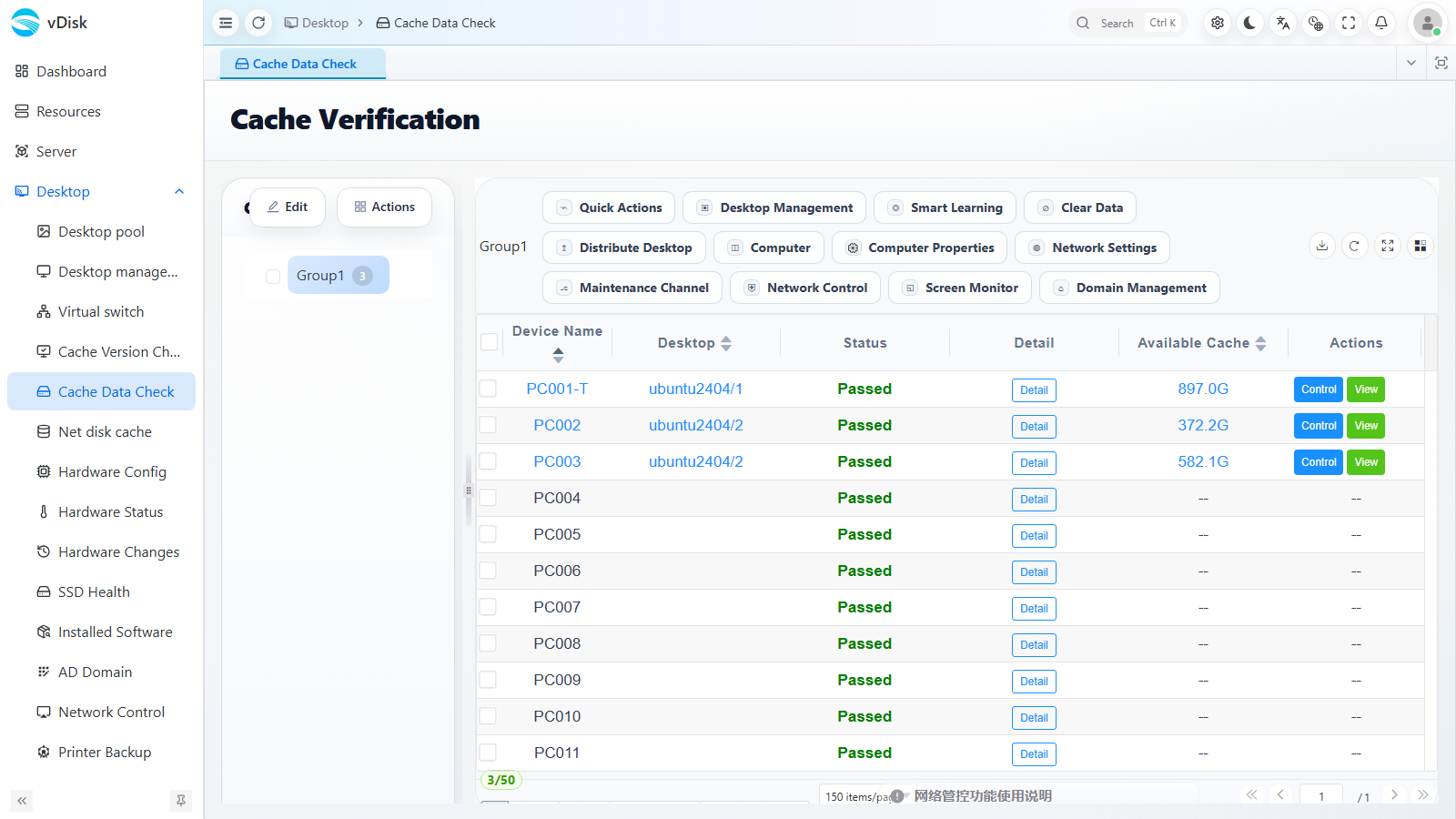
The check compares local cache blocks against the server's source image, automatically detecting and flagging missing or corrupted data so it can be filled in when the terminal is online.