Version Notes
Main issues with IDV3 / vDisk3:
- During a download, if the computer is restarted, the image automatically switches to write mode, but there is a high probability of image corruption resulting in boot failure or a blue screen. The vast majority of maintenance workload comes from this issue.
- Various update errors, such as "Failed to get disk information (job not cleared after failure)" and other errors displayed when enabling updates.
- Any error during download results in a full reset — very time-consuming. With large installation volumes and large software update volumes, this wastes significant time.
This round of refactoring focuses primarily on maintenance-free operation — no need for overnight downloads. Downloads can proceed while the system is in use, moving maintenance work to daytime hours. Regardless of whether a download succeeds, it has no impact on current operations. Additionally, this resolves download issues: every computer can continuously seed.
Cloud Desktop Bug Fixes
| Comparison | vDisk5 | vDisk3 |
|---|---|---|
| Architecture refactoring | The original architecture had been in use for many years. In the current trend toward Xinchuang (domestic hardware) and localization, updates and maintenance had become difficult. A full refactoring has been completed. The server now directly provides cross-platform binaries, synchronized with x86 platform updates. The client core components are compiled directly for all platforms — in theory capable of running on x86/ARM servers, NAS, and Docker. | Cross-platform was difficult; compiled and maintained separately. |
| System corruption on restart during download | Fixed. | Not fixed. |
| Same-version resume (checkpoint resume) | Supported. If the desktop being downloaded has not changed versions, the download resumes; otherwise it re-downloads the version update. Before the download starts, the speed may appear as 0 — this is normal while previously downloaded data is being scanned. (This does not refer to incremental updates. Incremental updates are still supported. During an incremental update, if the download stops, the increment supports resume on shutdown/restart.) | Not supported. |
| Background download | Restarting during a download does not affect the update — it resumes on the next startup. | Not supported. Restarting the computer during a background download will corrupt the current system. |
| Zero-speed optimization | When a zero-speed condition is detected on the current download link, automatic optimization is applied from that point to prevent the download from stalling. | The download would directly stall. |
| Automatic download grouping | Precisely allocates different NIC speeds to different links for downloading. | Imprecise — can allocate incorrectly. |
| Automatic download matching | During download, computers in the same group are assigned to the same link as much as possible based on the image, improving download speed. | Not supported. |
| Automatic clearing of failed tasks | Supports automatic clearing of failed tasks. | Frequently encounters "Failed to get download task." |
| Dual-disk optimization and fix for frequent boot failures in dual-disk mode | Fixed. | Not fixed. |
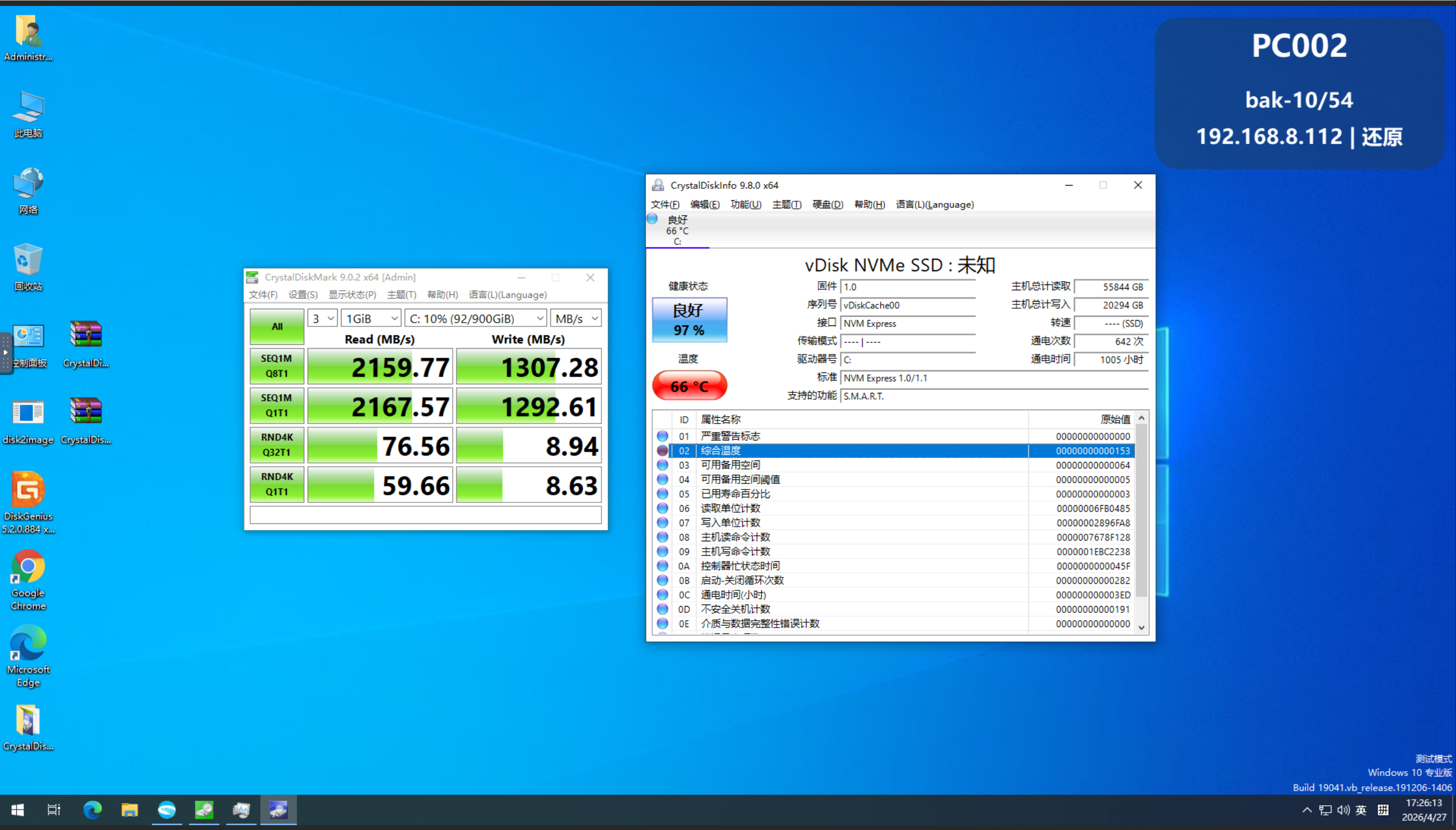
| SSD performance optimization | SSD performance has been optimized — read speeds can now exceed 1 GB/s. | Maximum 300 MB/s read. |
| SSD gradually slowing down over time | Fixed. | SSD gets progressively slower until it begins to affect startup speed. |
| Download mode switched to BT | Simultaneously supports BT / chain transfer / broadcast. BT mode is the default — in BT mode, each computer seeds during transfer, making transfer speeds significantly faster than before and eliminating the serial connection of all computers. Transfer success rates are also much higher. Built-in network environment auto-sensing improves accuracy over time. | Chain transfer / broadcast — frequently results in 0-speed transfers. |
Cloud Desktop V5 New Features
| New Feature | Description | Notes |
|---|---|---|
| Network data disk / semi-read semi-cache data disk | Supports creating a semi-read semi-cache data disk. During read/write operations, the disk automatically caches data locally — cache as you use — to resolve the problem of small hard drives storing resource files. | None |
| Personal network drive | Creates a network data disk based on user accounts. The data disk is a standard virtual disk, not a web-based drive, and functions identically to a local C drive. | Only available within environments where the cloud desktop is deployed; no data audit risk. Not available in the Basic version. |
| Network boot / semi-read semi-cache boot | Supports direct network boot and can achieve semi-read semi-cache boot — cache as you use. | Requires the server to be permanently online; generally used only in combination with full caching. |
| Xinchuang (domestic hardware) support | Compatible with common Xinchuang machines on the market. | None |
| Virtual switch | A virtual switch can be configured — the more accurate the configuration, the faster the download speed. | None |
| Graphical ROM interface | A fully graphical ROM interface providing manual download, manual disk clearing, log viewing, download functions, etc. | None |
| disk2image tool | After the client is installed, an image creation tool automatically pops up. Using this tool, you can directly upload the local image to the server with no extra steps required. | When creating a template client, do not partition C drive too large — if 200 GB is enough, aim for 200 GB (it can be expanded later). The larger the partition, the more fragmented it becomes. |
| Network-enabled boot menu | Selecting the menu provides network connectivity. After connecting, access modes and other information are automatically synchronized. The new menu also provides many maintenance shortcuts — see the Boot Menu Usage Guide for details. | The new menu and the original plus1x64.efi are combined into one. On the first boot, a prompt will indicate the menu cannot be reached — this is normal. After the timeout, the network ROM will automatically start with no action required. |
| Desktop version collection | Collects all downloaded and not-yet-downloaded desktops, matches them against the server, and allows the console to report which computers have downloaded and which have not. | None |
| SSD health status | Every 30 minutes in the background, SSD health information from all terminals is collected and a comprehensive assessment is returned. | Requires a disk that supports standard NVMe SMART. |
| Software installation query | Automatically collects the software installed on each desktop, including version information. | None |
| Network access control | Supports setting LAN only / China only / Full Internet access. | No complex configuration needed; can easily block external network access. |
| Desktop sidebar | Similar to the Windows 7 sidebar — an information panel appears on the right side. The background is in HTML format and supports adding hyperlinks. | None |
| Desktop wallpaper | Allows desktop wallpaper to be set directly from the console; synced on startup. | None |
| Abnormal terminals | Automatically tracks terminals that fail to start or have been offline for an extended period. | Requires the boot menu to be enabled with a timeout of 7 seconds or more. If too short, the terminal reports and then boots before it can be flagged. |
| NIC driver PNP | Works with the network boot feature. Allows NIC drivers to be injected into the image to be booted at startup. | None |
| Scheduled tasks | Supports standard cron syntax for scheduled shutdown, power-on, setting default desktop, etc. Also supports standard cron configuration format. | None |
| Cross-network remote support | Supports publishing a shared remote desktop link in restore mode / update mode and setting an expiry time. Write mode publishing is not supported. | |
| Mini Program | Adds complete cloud desktop management features, including remote deployment, restart/shutdown, and desktop control. | Remote desktop is disabled when the terminal is in write mode. |
Management Platform New Features
| New Feature | Description | Notes |
|---|---|---|
| IoT Management | Supports centralized management of surveillance / access control / air conditioning / lighting / central control | None |
| Login Authentication | Supports login authentication; customizable to support campus QR code login. Default uses username and password. One account can simultaneously use the network drive and log in with records kept. The login interface can be automatically customized in the backend, with automatic slideshow playback, announcements, etc. | None |
| Timetable | Can be imported manually or integrated via API; the middleware tool is open source. The timetable is the foundation for smart operations. | None |
| Smart Operations / Smart Operations Dashboard | Supports smart operations — can automatically open/close doors, power on/off, and use surveillance to perform AI classroom inspections based on the timetable. | None |
| Online Supervision | Supervision implementation based on cloud desktop + surveillance. Real-time classroom images come from surveillance; computer screen images come from cloud desktop monitoring. In addition to supporting traditional supervision, it also supports computer screen content analysis and automatic PPT material analysis with keyword matching. | None |
| Screen Monitoring | Keywords can be set to capture and save screenshots of screen content; also supports invoking surveillance cameras to record the scene. | None |
| Resource Center / Information Portal | Installation packages can be published in the resource center and retained. The information center supports viewing the desktop distribution of all classrooms, software installed on desktops, number of machines per classroom, machine configurations, experiment software hyperlinks, etc. | None |