SSDs Are So Expensive — What to Do When Disk Space Is Insufficient
When disk space is insufficient and SSDs are costly, try semi-caching
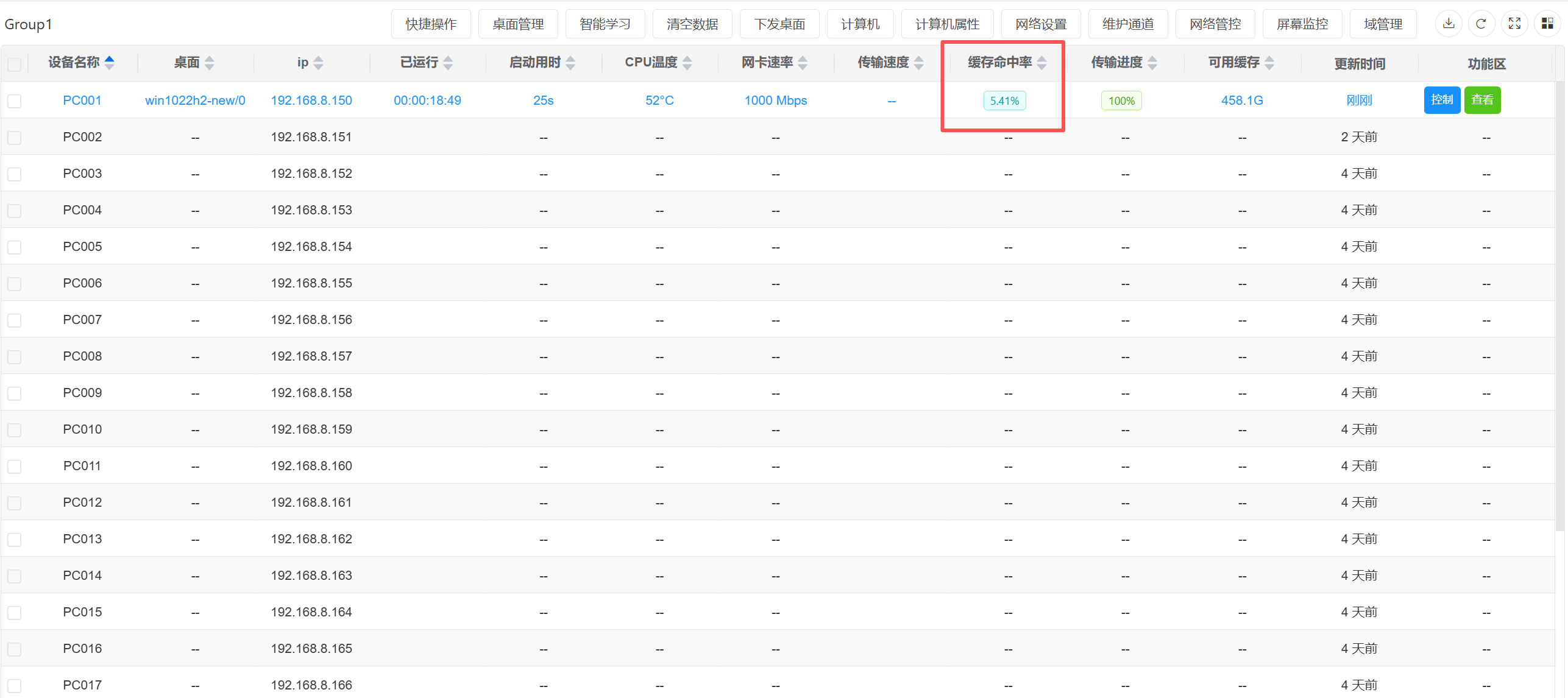
When caching is enabled, the full system is not cached to local storage — only as much as you use is cached.
This usage requires network boot to work in conjunction.
If local space is only 256 GB, consider fully caching one image (capable of offline boot) with some commonly used software installed, using 80 GB for software. All less-frequently used software can be installed in a separate image. That image uses network boot directly — do not click Download — cache as you use.
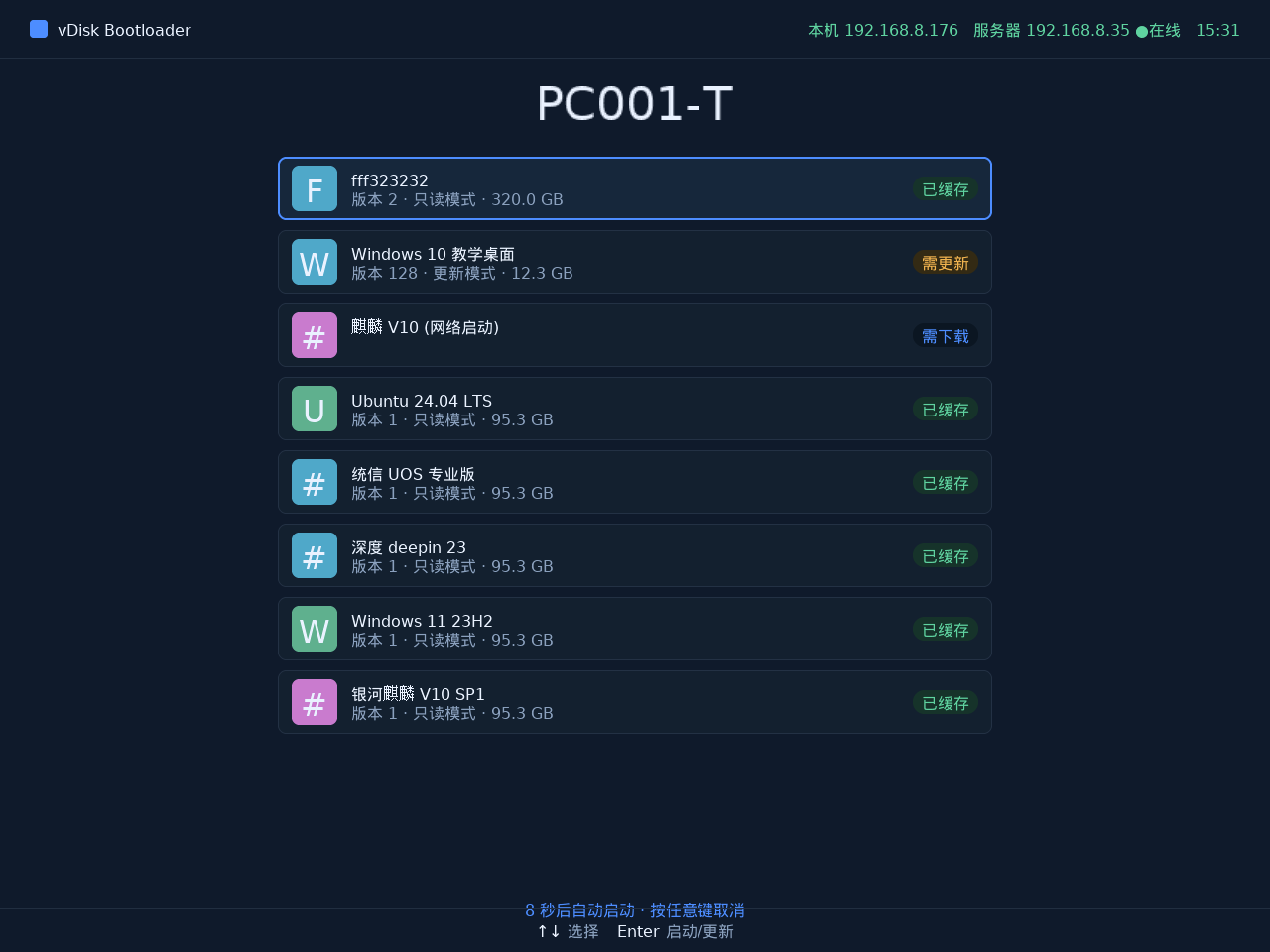
If there is no "(Network Boot)" image, it is a full-cache boot. If a network boot image is present, network boot will be attempted.
Checking Cache Hit Status
After enabling semi-caching, you can monitor each terminal's cache operation in real time on the Desktop -> Net disk cache page to confirm that semi-caching is working correctly.
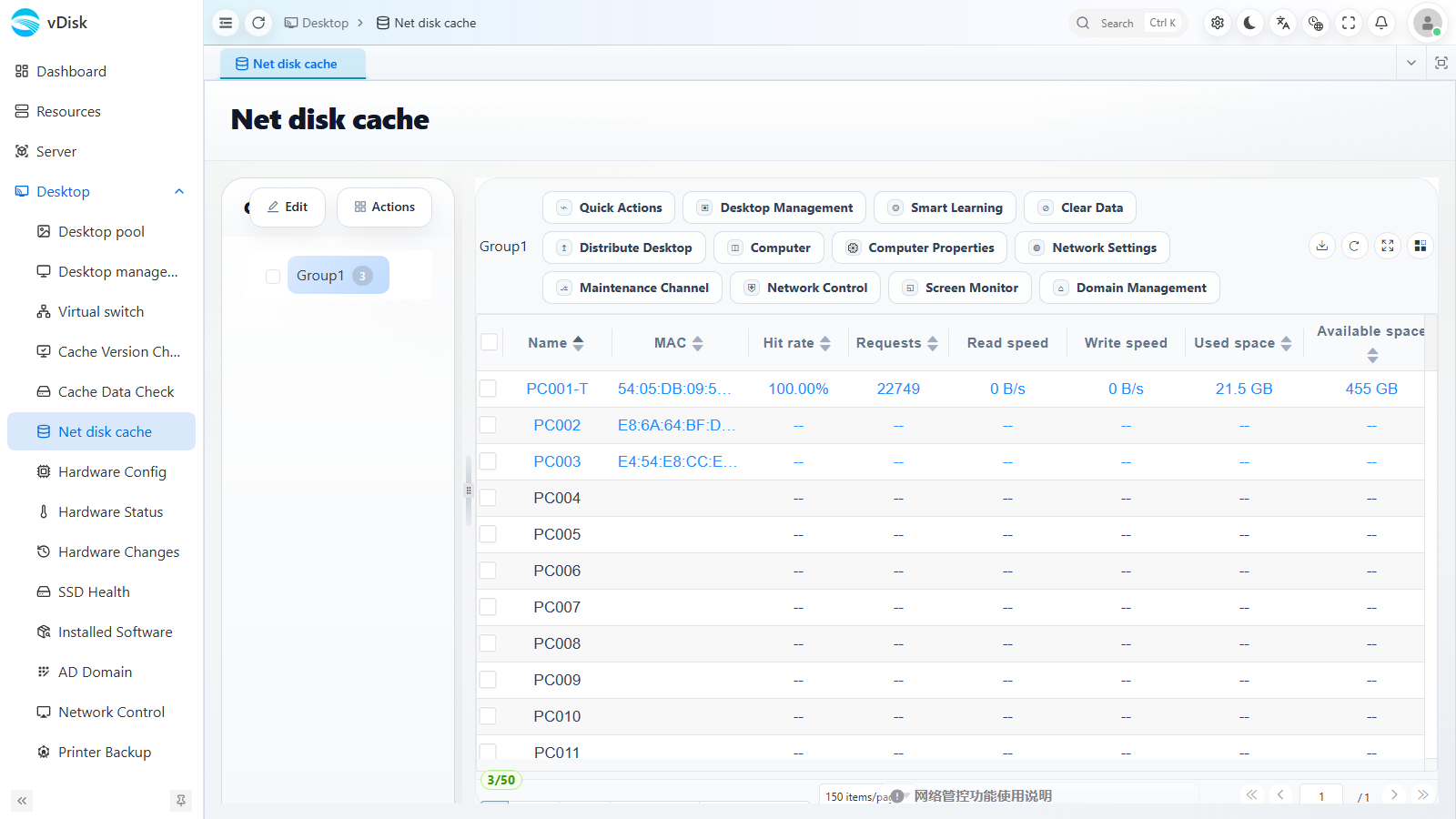
In the list, you can view each terminal's cache metrics by computer name (Name) / MAC address:
- Hit rate: The higher the hit rate, the more fully the local cache is utilized and the less data is requested from the server. If the hit rate stays low, it is usually because the cache limit is set too small, causing frequent reclamation once it is exceeded — you can increase the cache limit appropriately.
- Requests: The cumulative number of read/write requests.
- Read speed / Write speed: The current cache read/write throughput.
- Used space / Available space: The local cache space used and remaining, which you can use to assess whether the SSD space is sufficient.