How to Deploy Systems Heterogeneously (BIOS/EFI and Multiple Architectures)
Heterogeneous deployment refers to a mix of computers with different boot firmware (BIOS / EFI) or different CPU architectures within the same image or the same group. The new WEB console has made firmware type and CPU architecture computer properties, so there is no longer any need to manually edit the database.
1. Specifying Firmware and Architecture for a Computer in the Console
Go to Desktop → Desktop management, click Computer → Add, and in the drawer, besides basic information such as the name and IP, you can set:
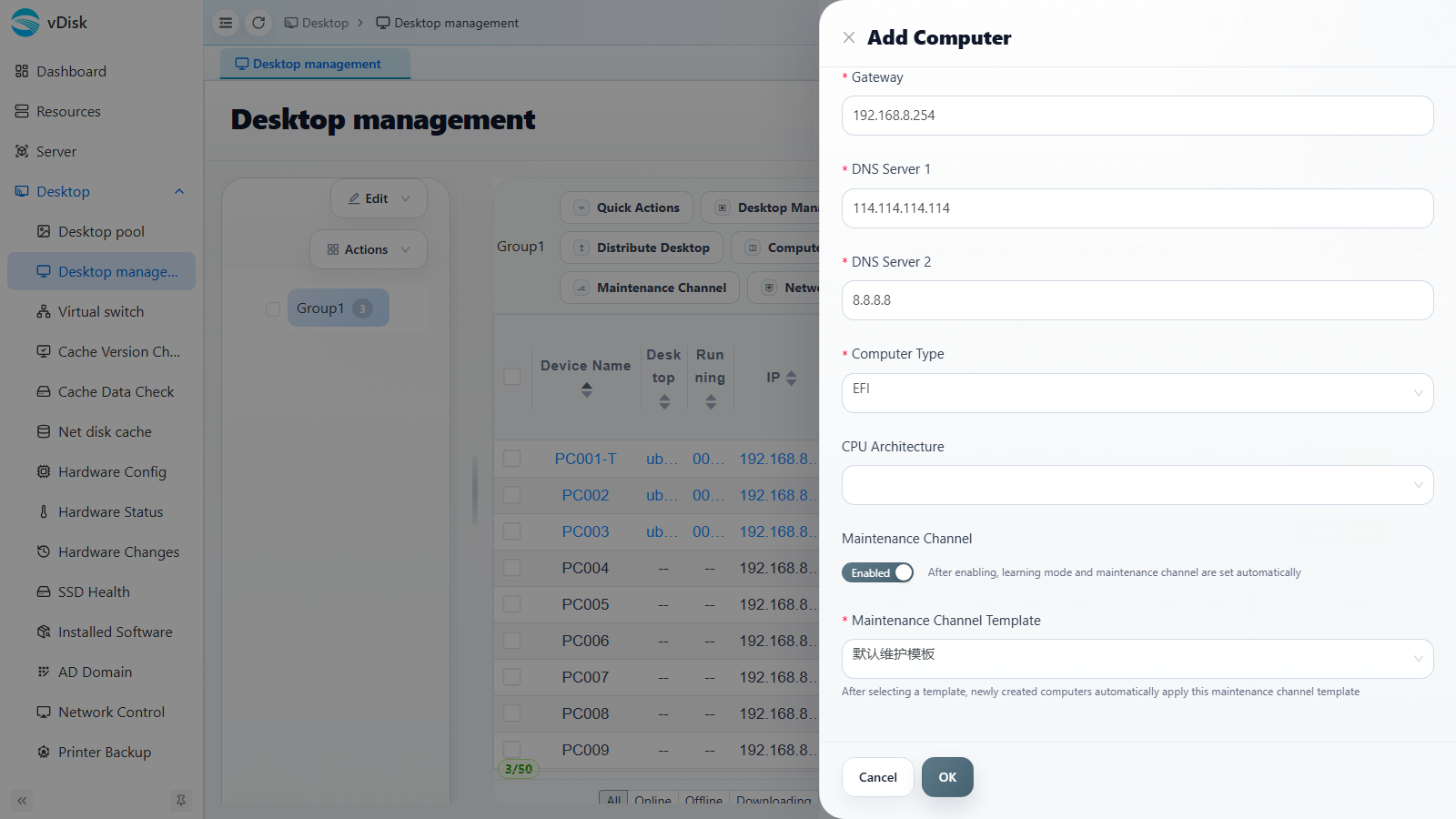
| Field | Description |
|---|---|
| Computer Type | The boot firmware type; options are EFI or BIOS, which must match the machine's actual firmware |
| CPU Architecture | The target machine's CPU architecture (x86_64 / arm64 / loongarch64 and other domestic architectures) |
The console matches the appropriate image and boot files according to each computer's own "Computer Type / CPU Architecture", so a single group can mix BIOS and EFI machines as well as different architectures, achieving heterogeneous deployment.
For existing computers, you can select them in the list and modify the above fields via Computer Properties.
2. Creating an Image Compatible with Both EFI/BIOS Boot (Advanced, Windows 10 and Above Only)
If you want a single image to boot on both BIOS machines and EFI machines, you can create a dual-boot image:
1. Install the system in BIOS mode, with the disk in BIOS MBR boot mode
2. Install the client normally and upload the system to the server
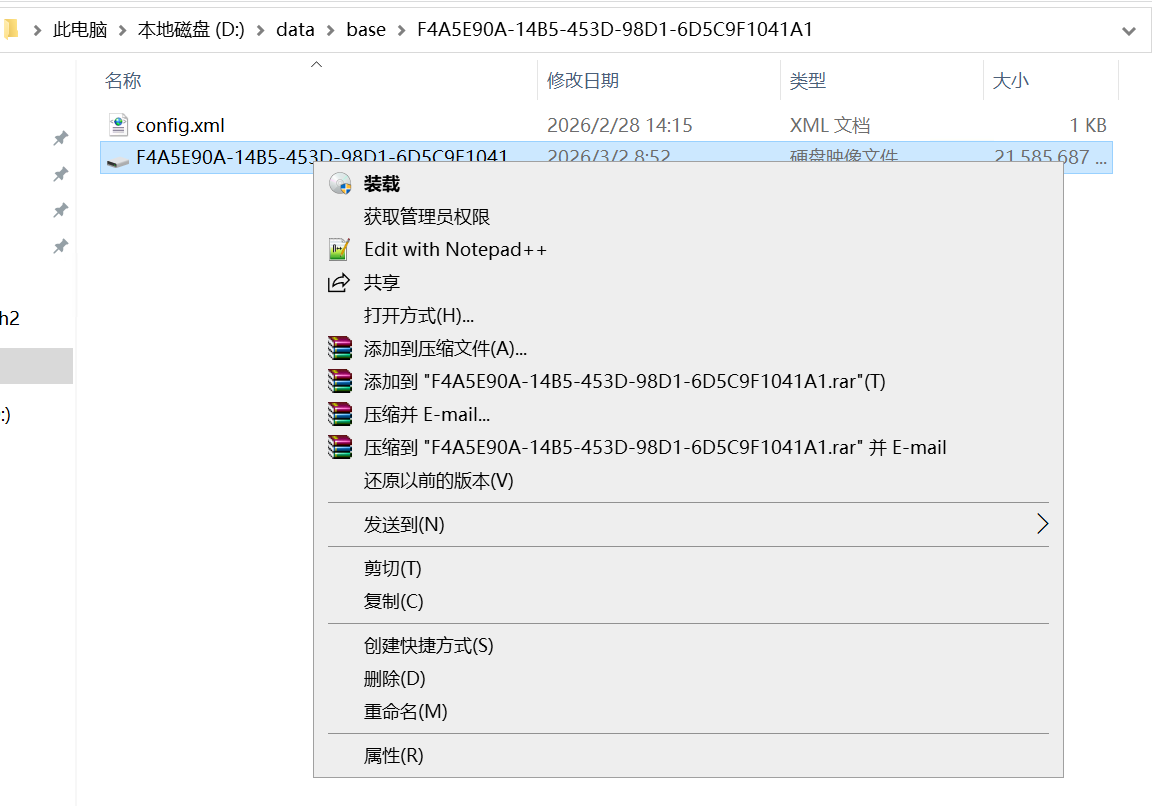
3. On the server, double-click the VHD file you just uploaded to mount it
4. Open Disk Management diskmgmt.msc
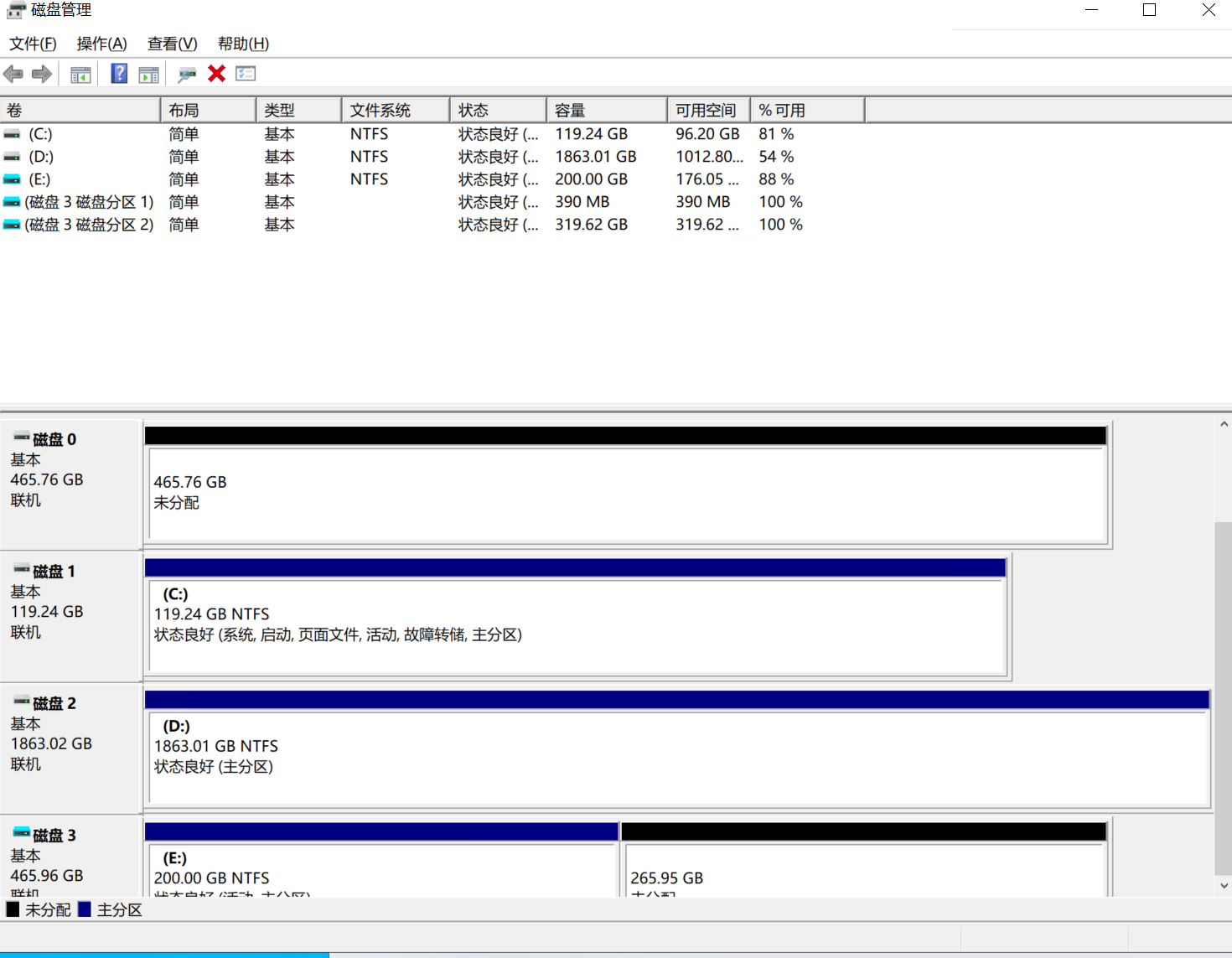
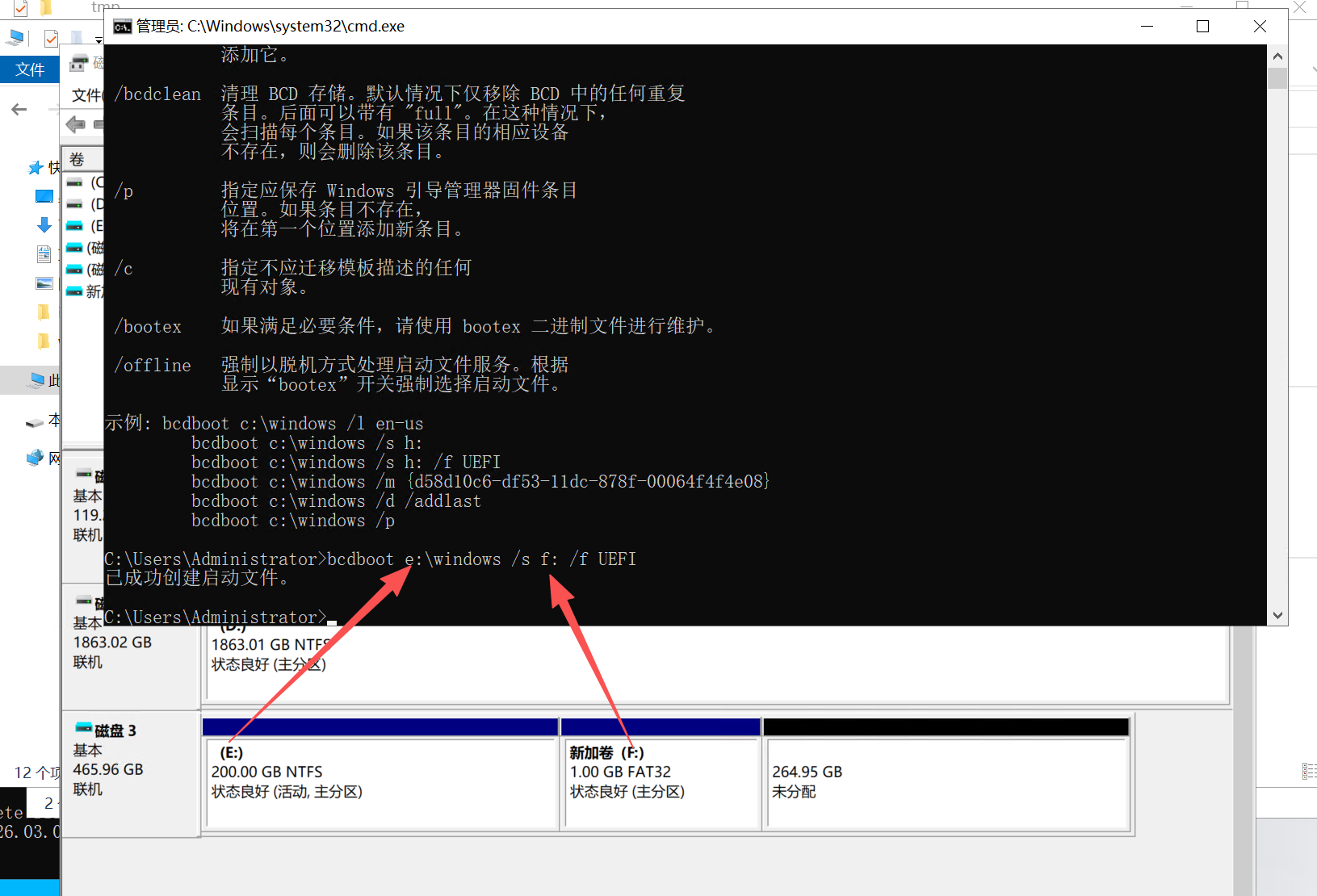
5. Right-click the virtual disk and create a new 1 GB FAT32 partition
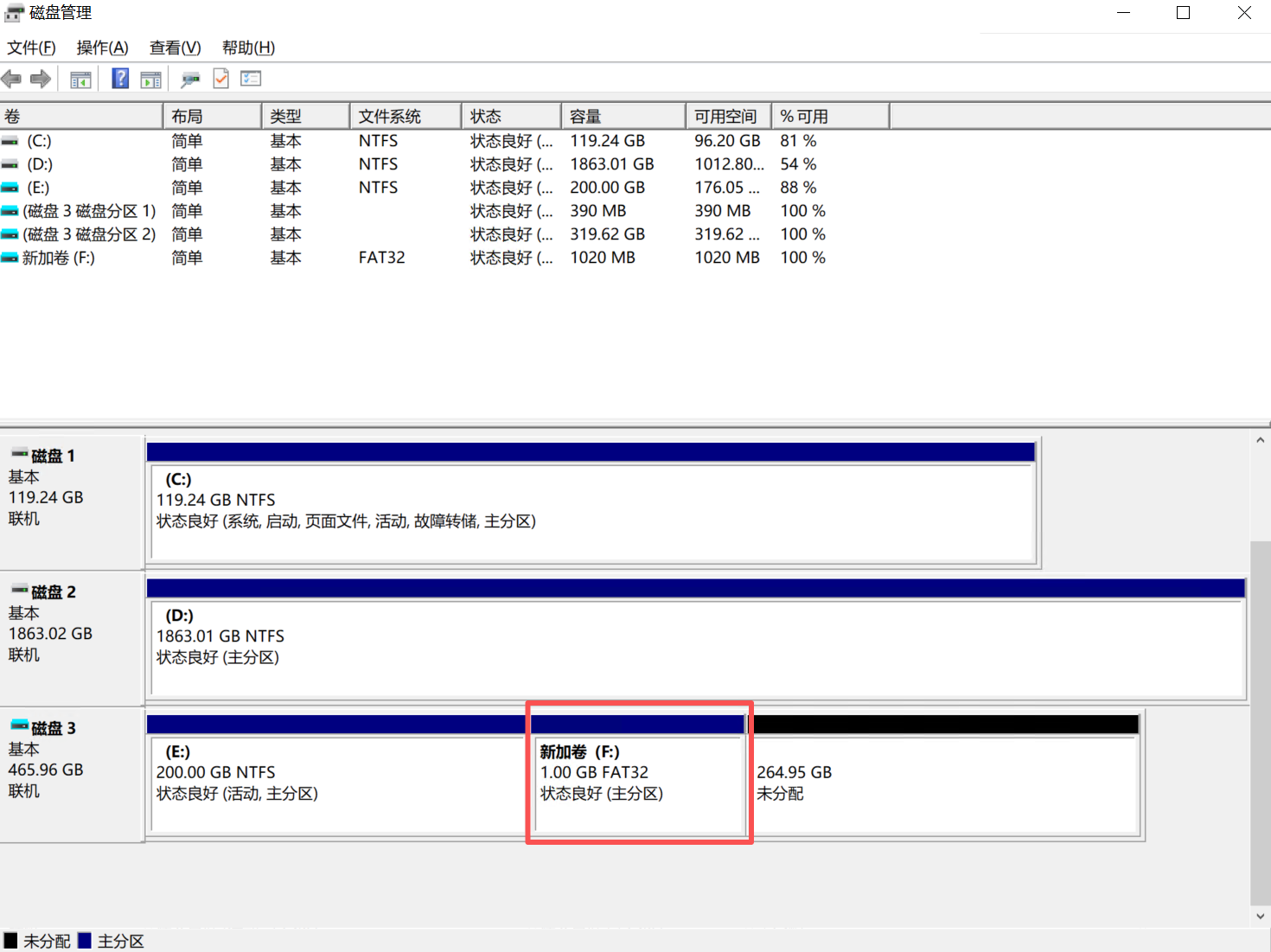
The partition must be in FAT32 format.
6. Write the boot files to the new partition (using the bcdboot command)
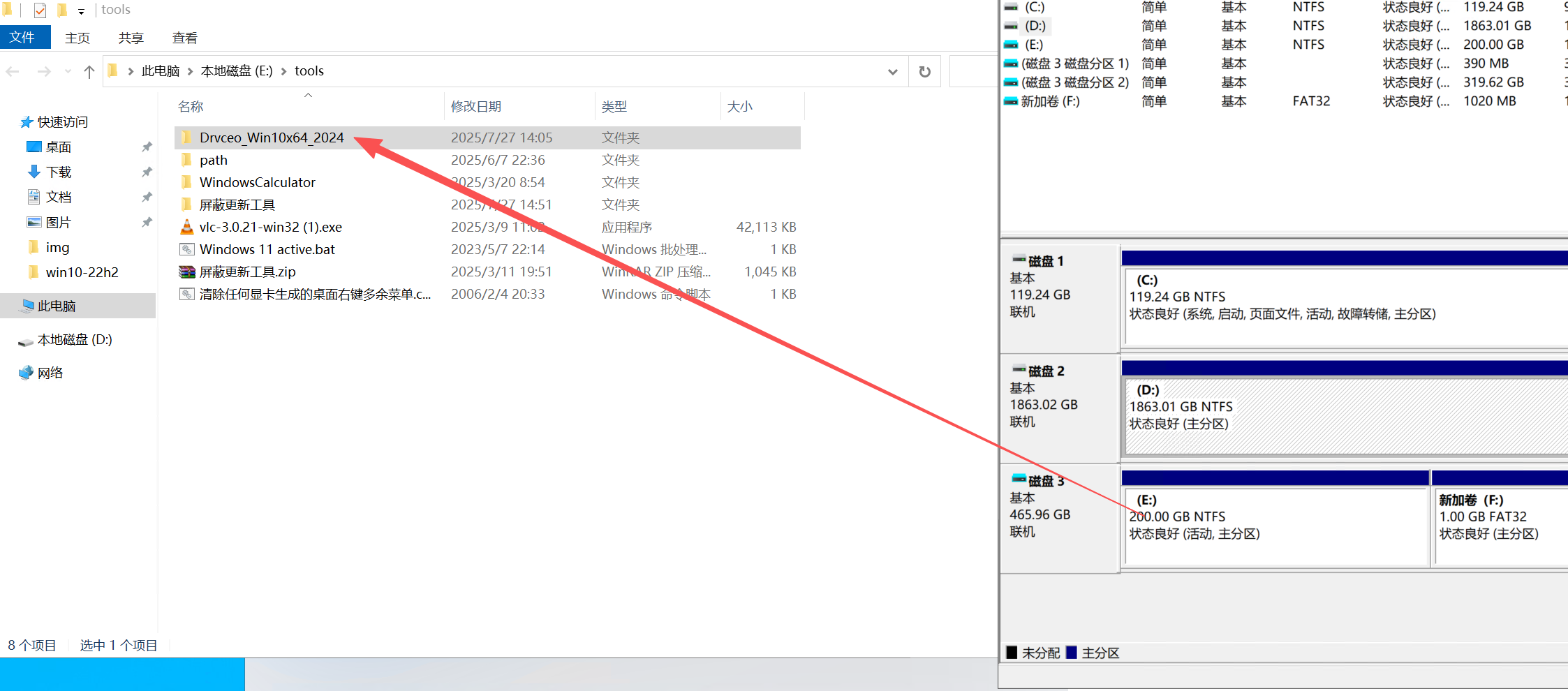
7. Copy the driver files to the tools directory
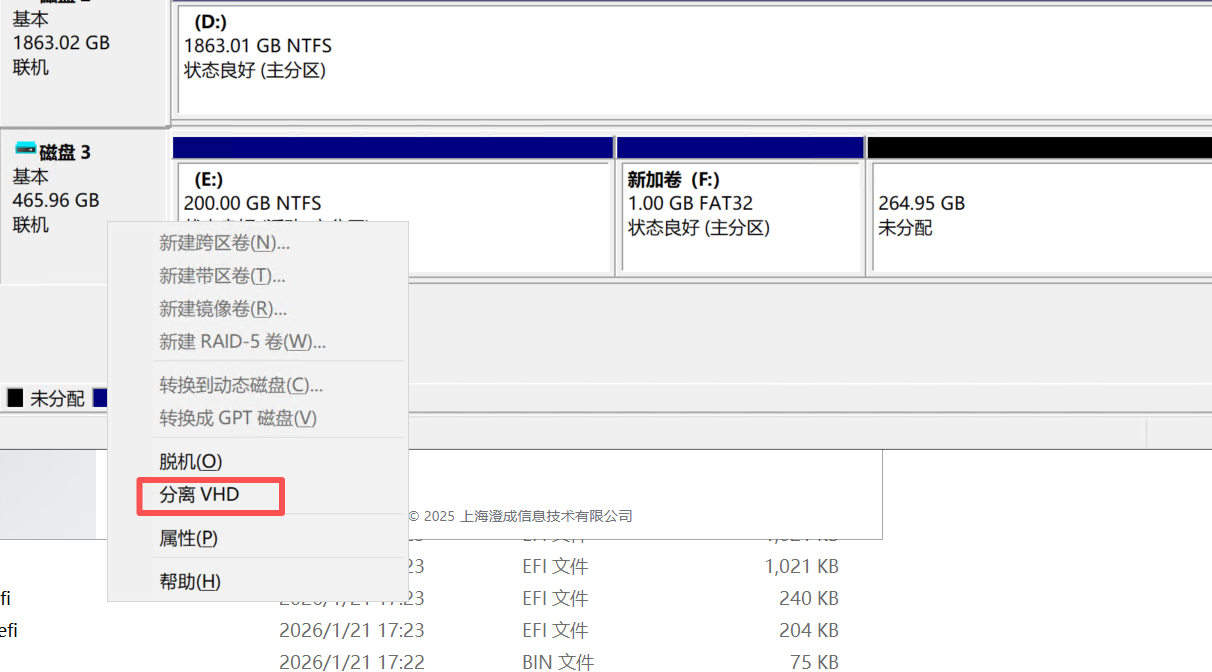
8. Unmount the virtual disk
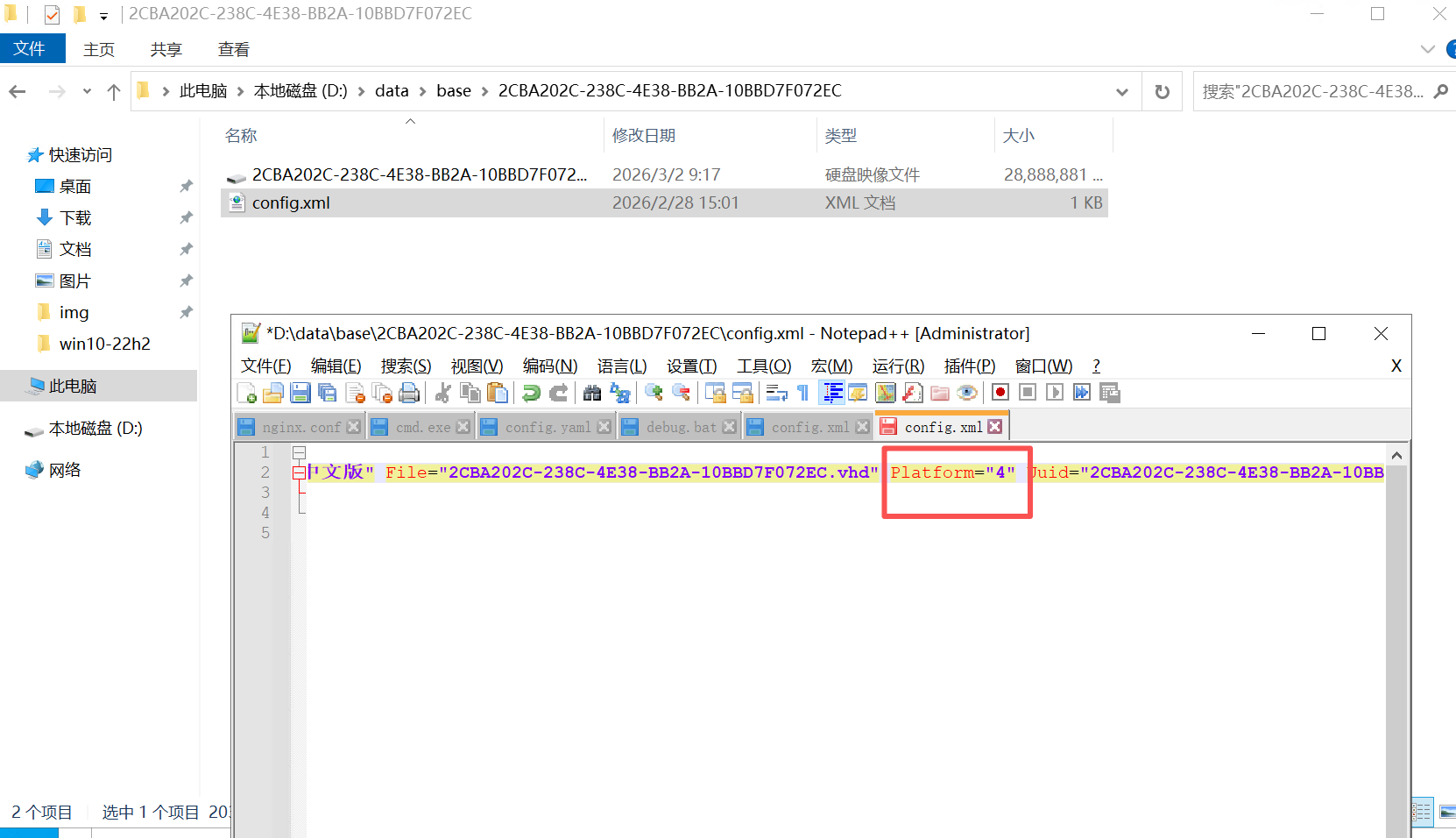
9. Set this image's platform type to "4 Dual-Boot Compatible Disk"
10. Remove the disk and re-add it
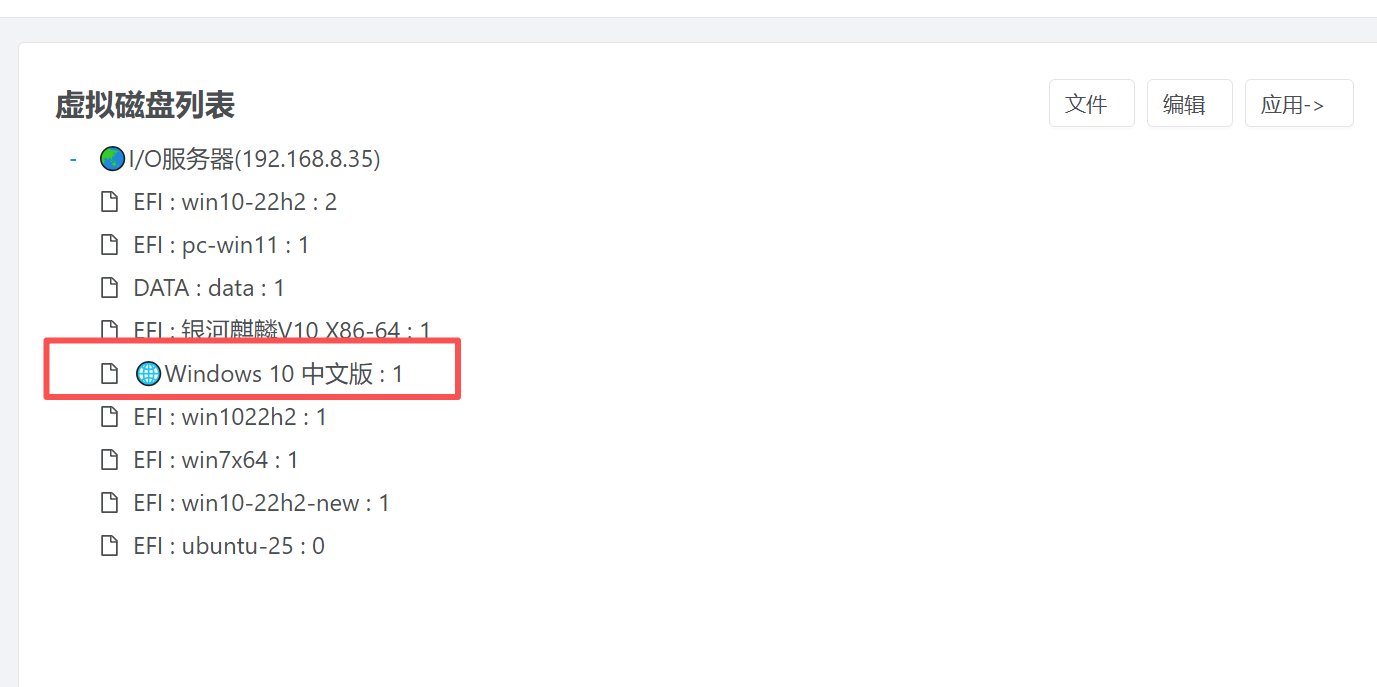
In most scenarios, using "1. Specifying Firmware and Architecture for a Computer in the Console" is enough to complete heterogeneous deployment; the dual-boot image creation above is only used when a single image must span BIOS/EFI.