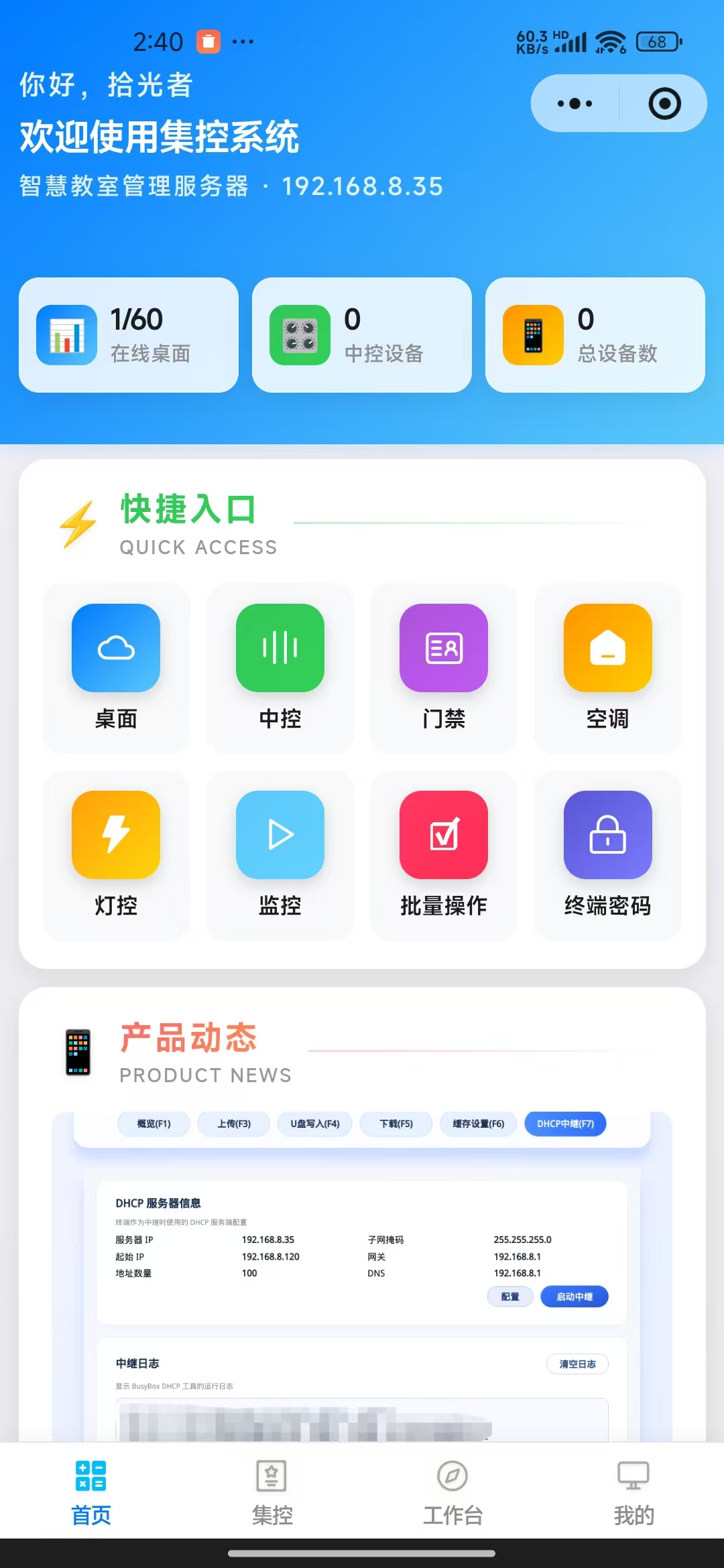
How to Bind the Mini Program to Manage Cloud Desktops
Navigate to Console → Mini Program Management → User Management
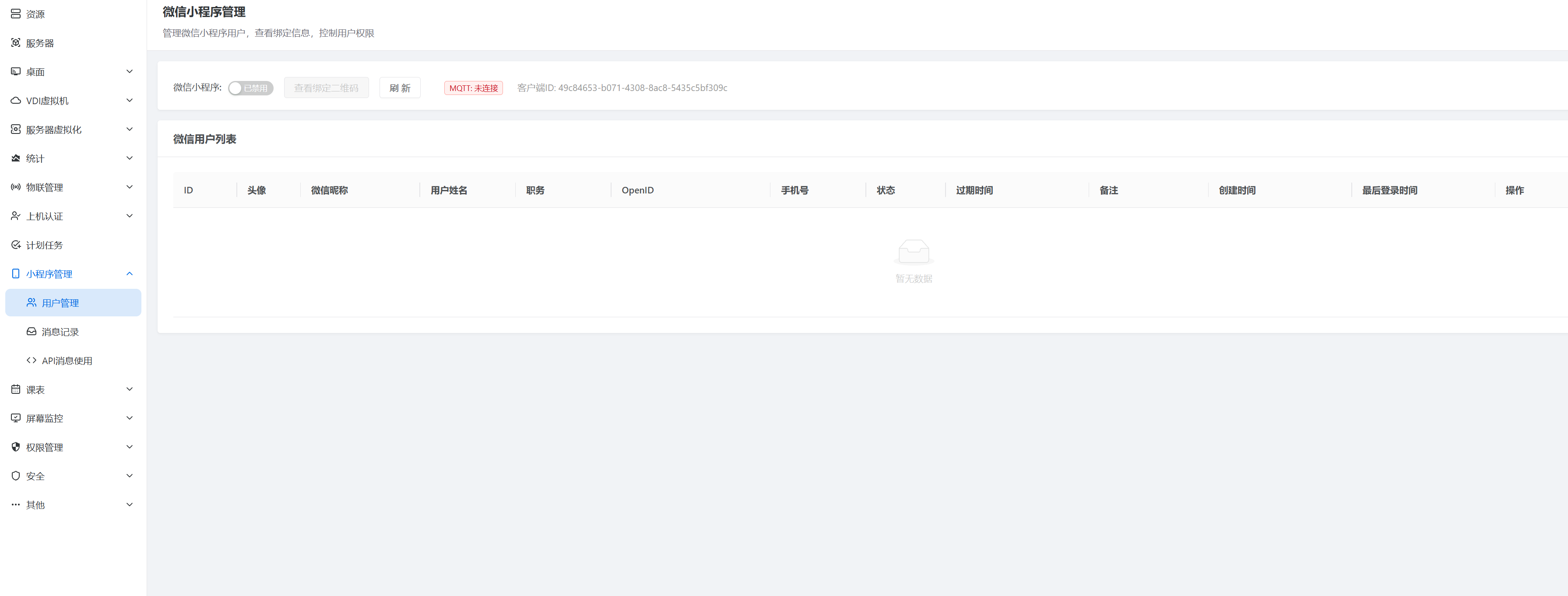
Enable the Mini Program Service
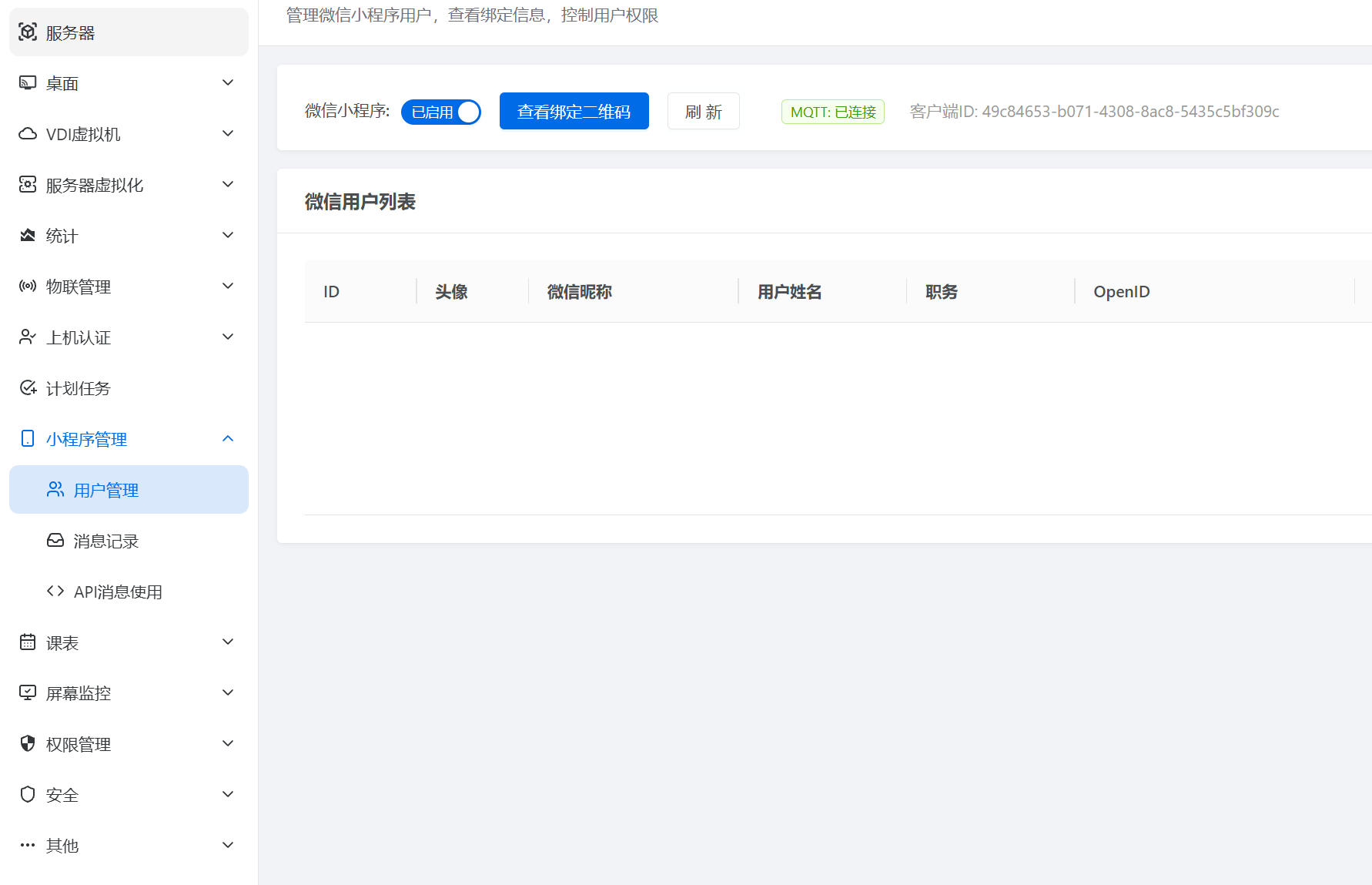
"MQTT Connected" indicates the server is ready.
Click "View QR Code" to Begin Binding
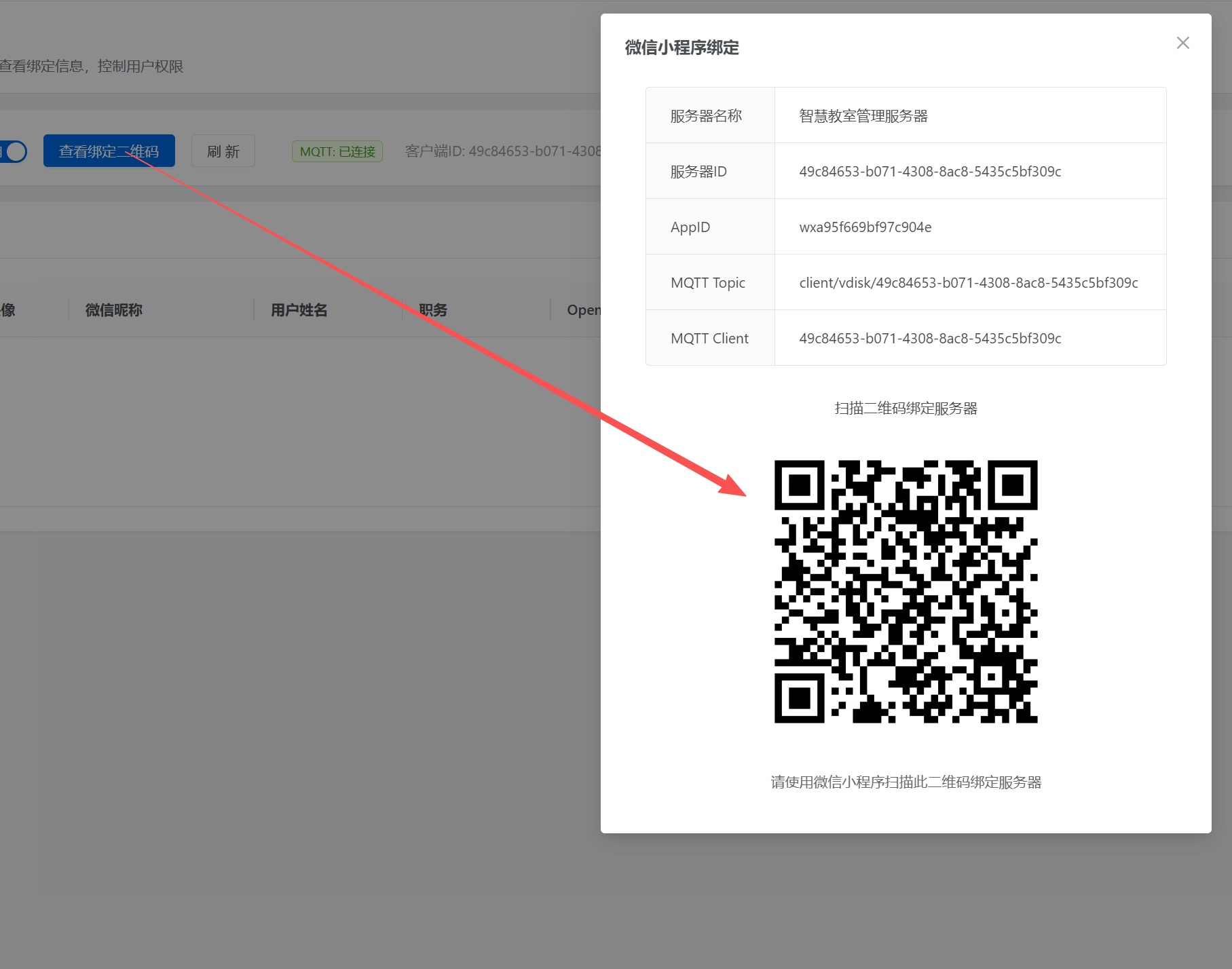
@@Use WeChat to scan the QR code for the first time. After the first scan, click "Follow Official Account".@@
@@After following the account, scan the same QR code a second time to enter the binding process.@@
Two scans are required because of the Official Account notification integration.
The Official Account Will Send a Notification Confirming the Server Binding
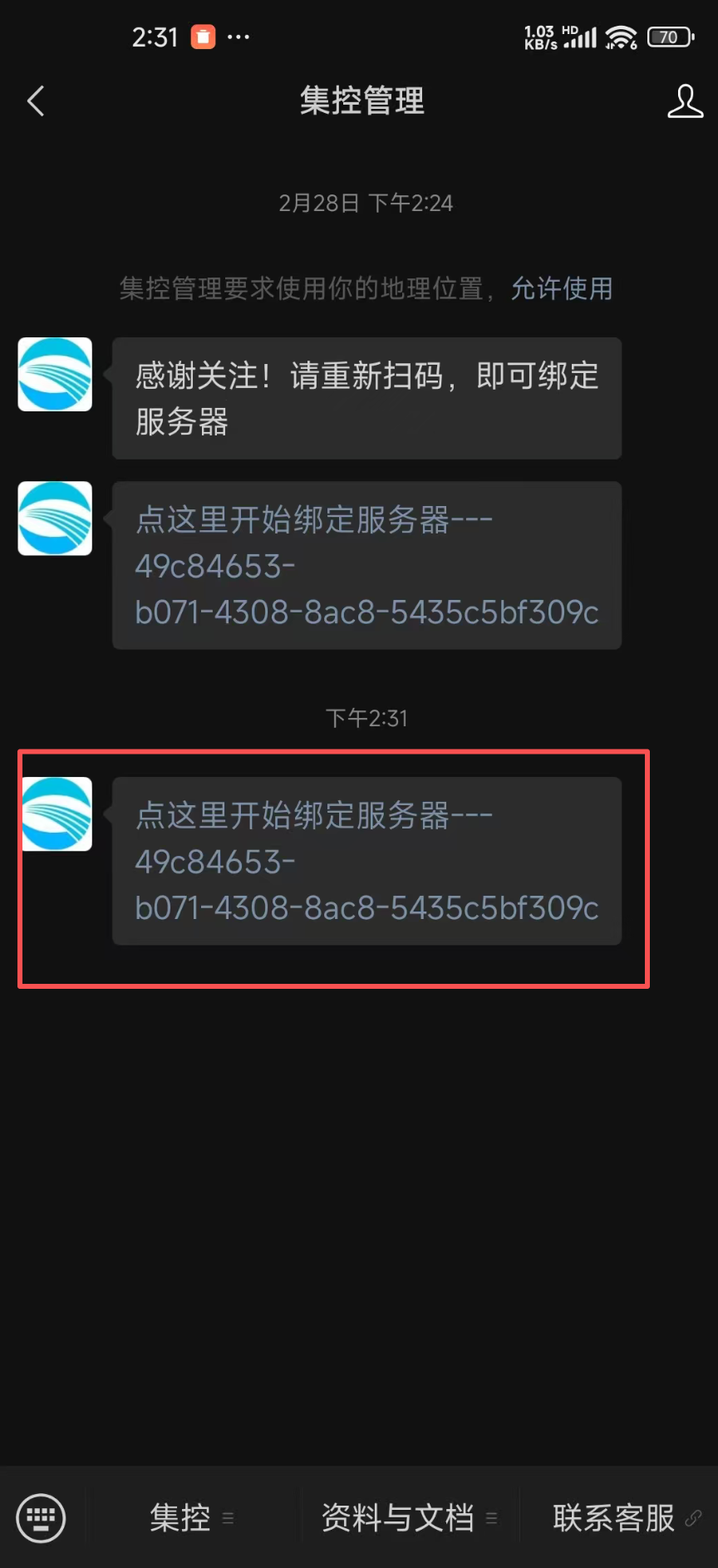
Open the Mini Program
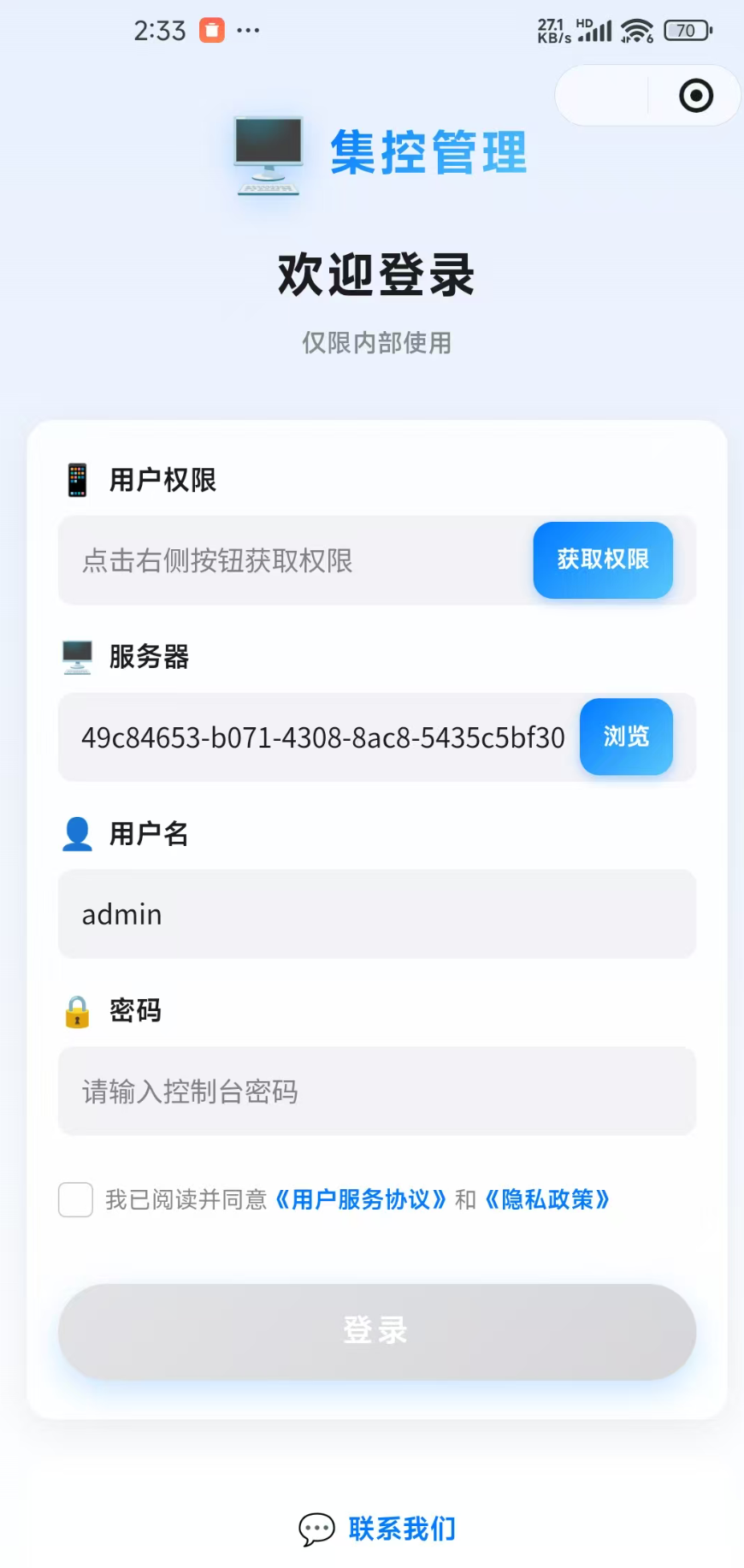
Step 1: Click "Get Permission" and bind a phone number. Going forward, this phone number will be used for direct authentication without re-initiating the authentication process.
Step 2: Server ID and username — leave these at their defaults.
Step 3: Enter the console password, agree to the terms, and click Login.
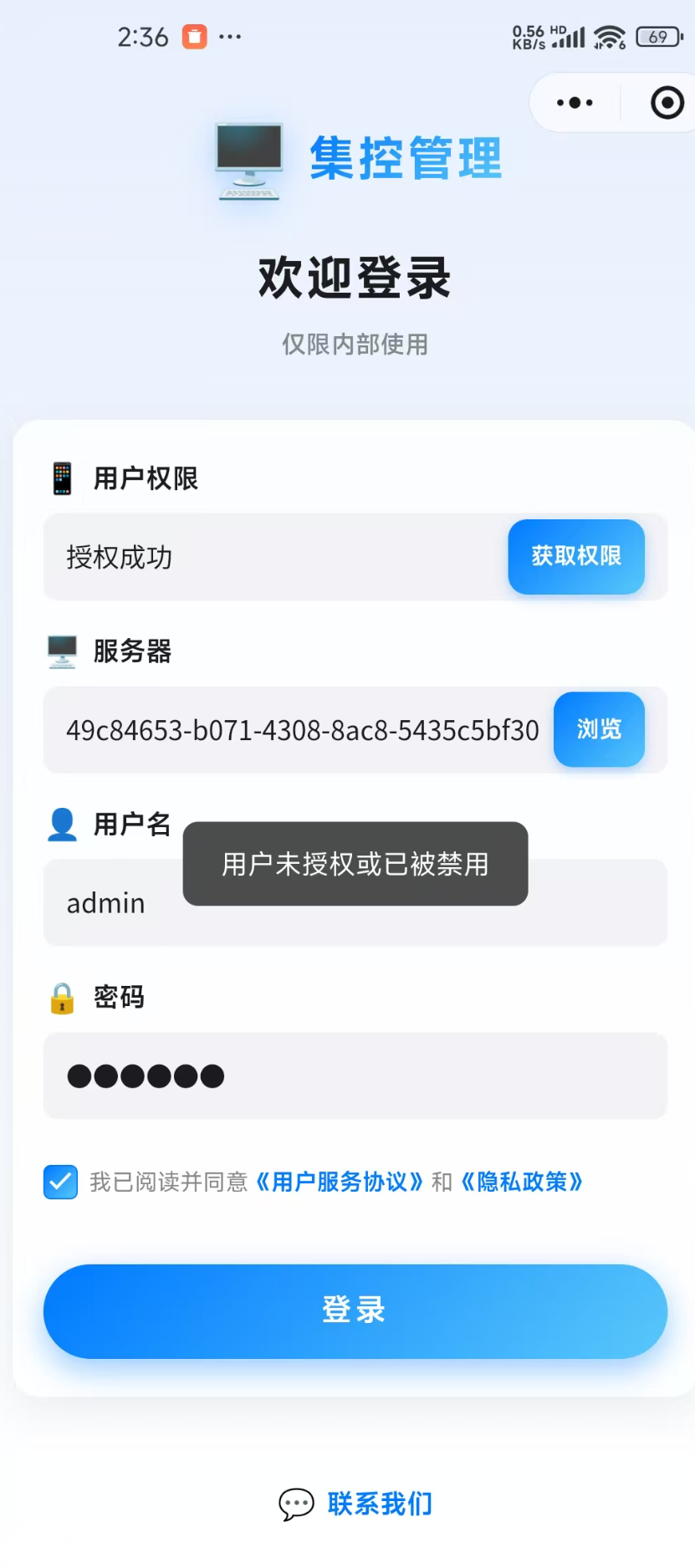
If "User Disabled" Appears, Return to the Console and Click Refresh
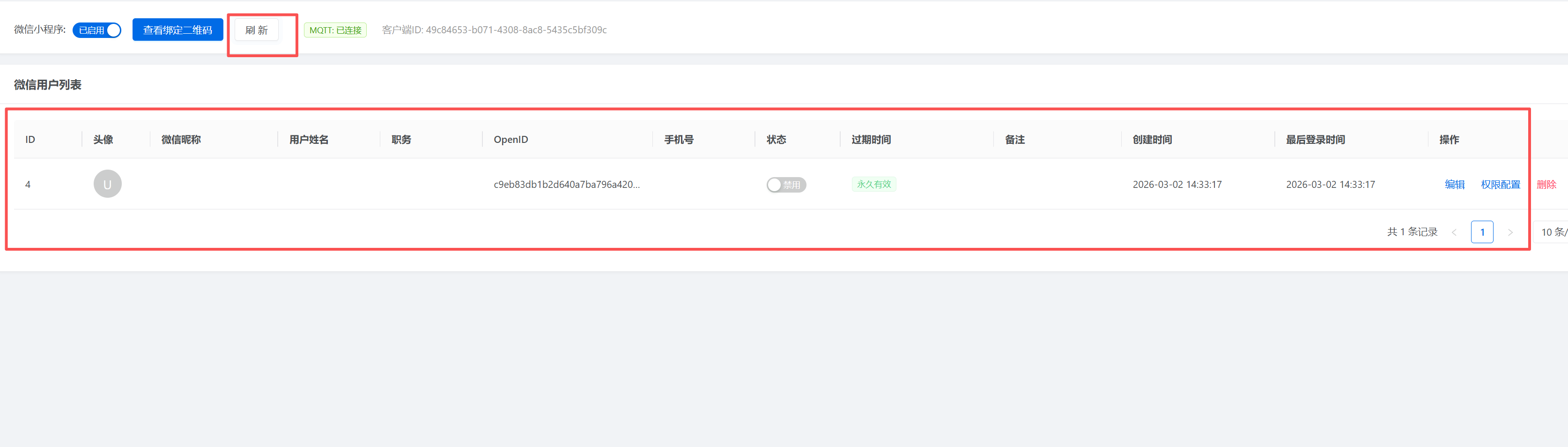
The Mini Program management platform uses an approval system — unreviewed users are rejected by default.
Approve the User and Assign the Appropriate Permissions
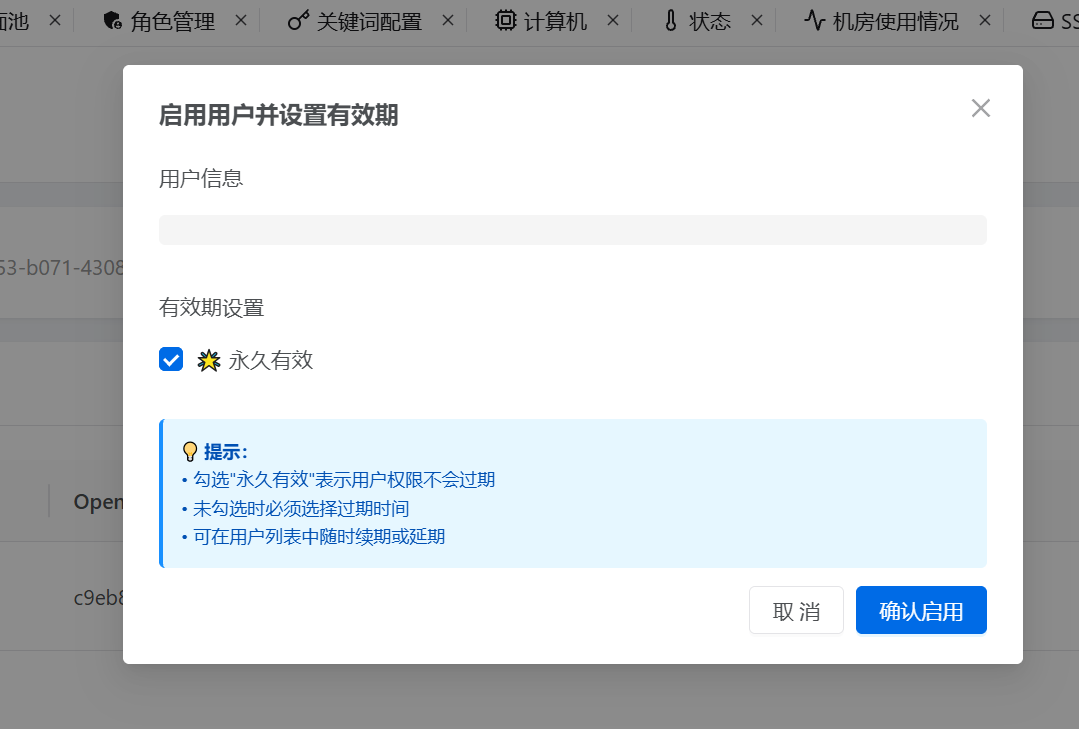
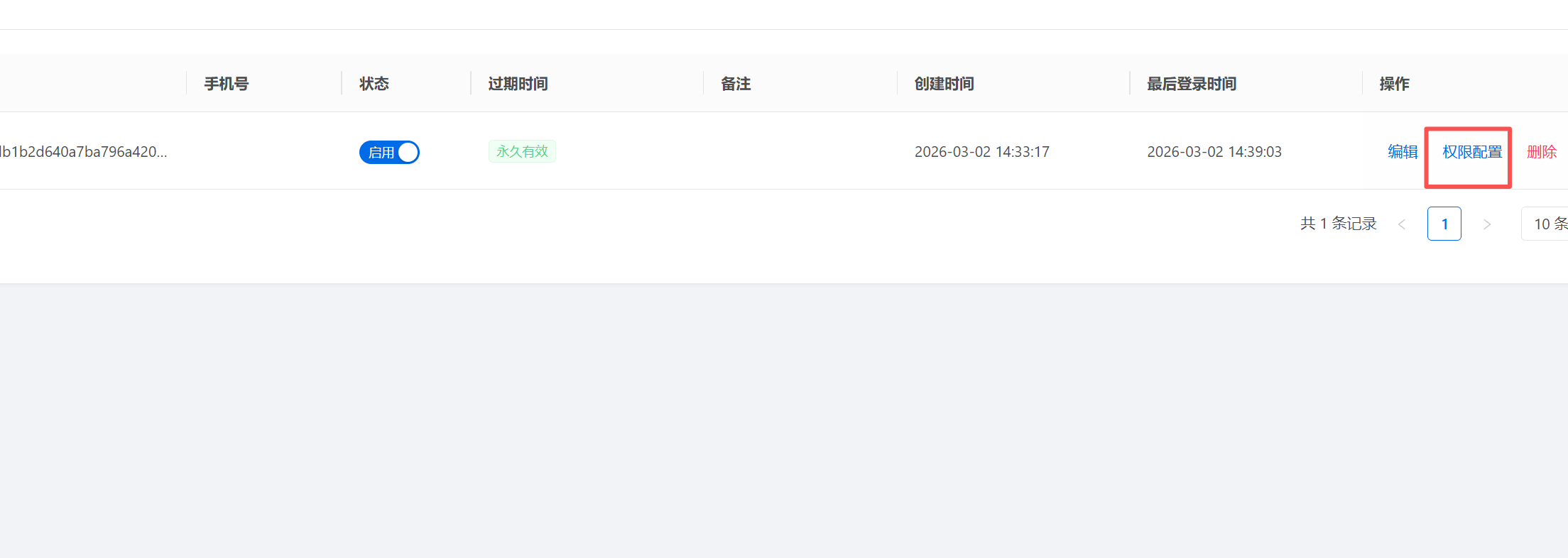
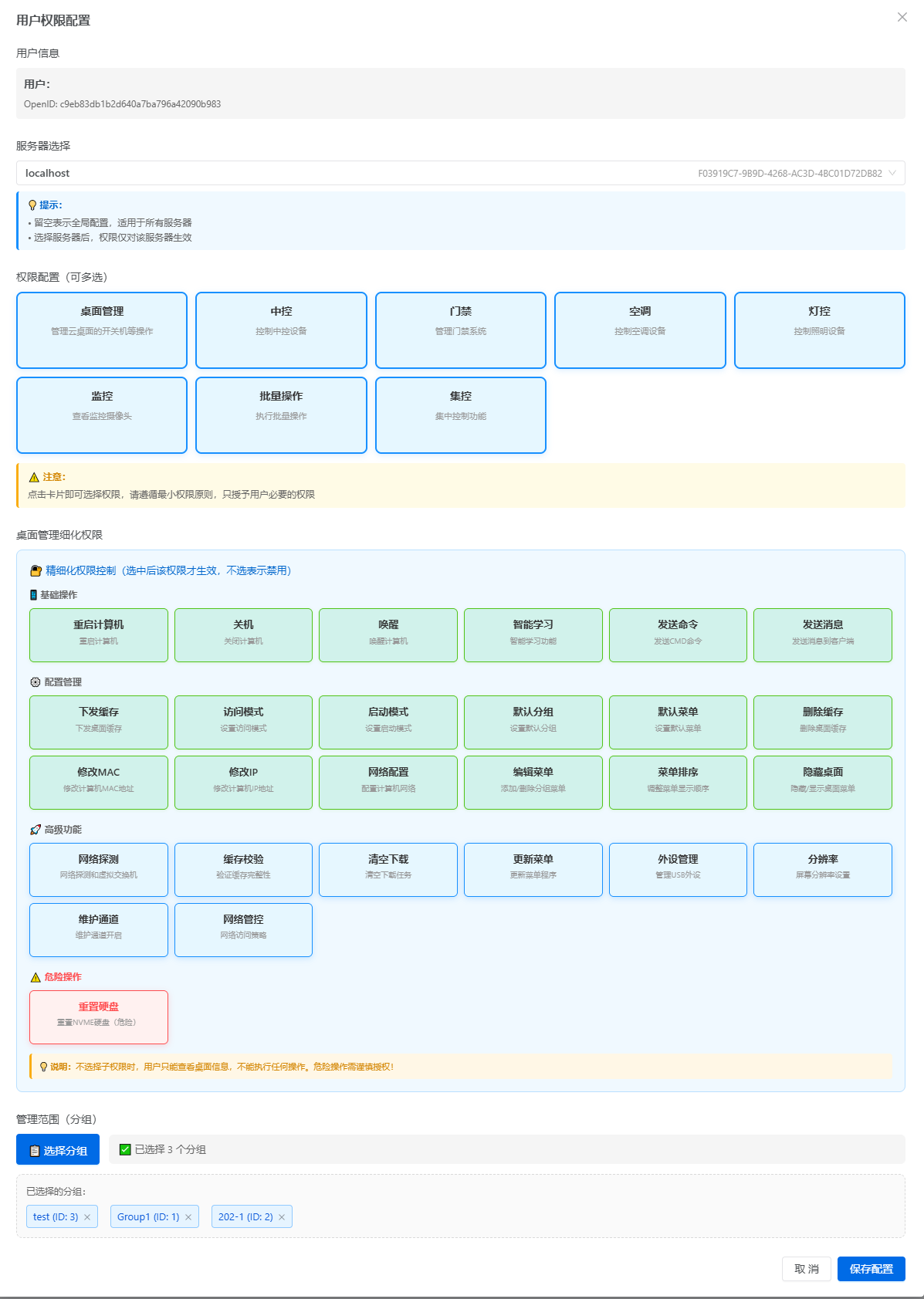
Both of the above steps must be completed before the Mini Program can be used.
Return to WeChat — You Can Now Log In Normally