Boot Menu Usage Guide
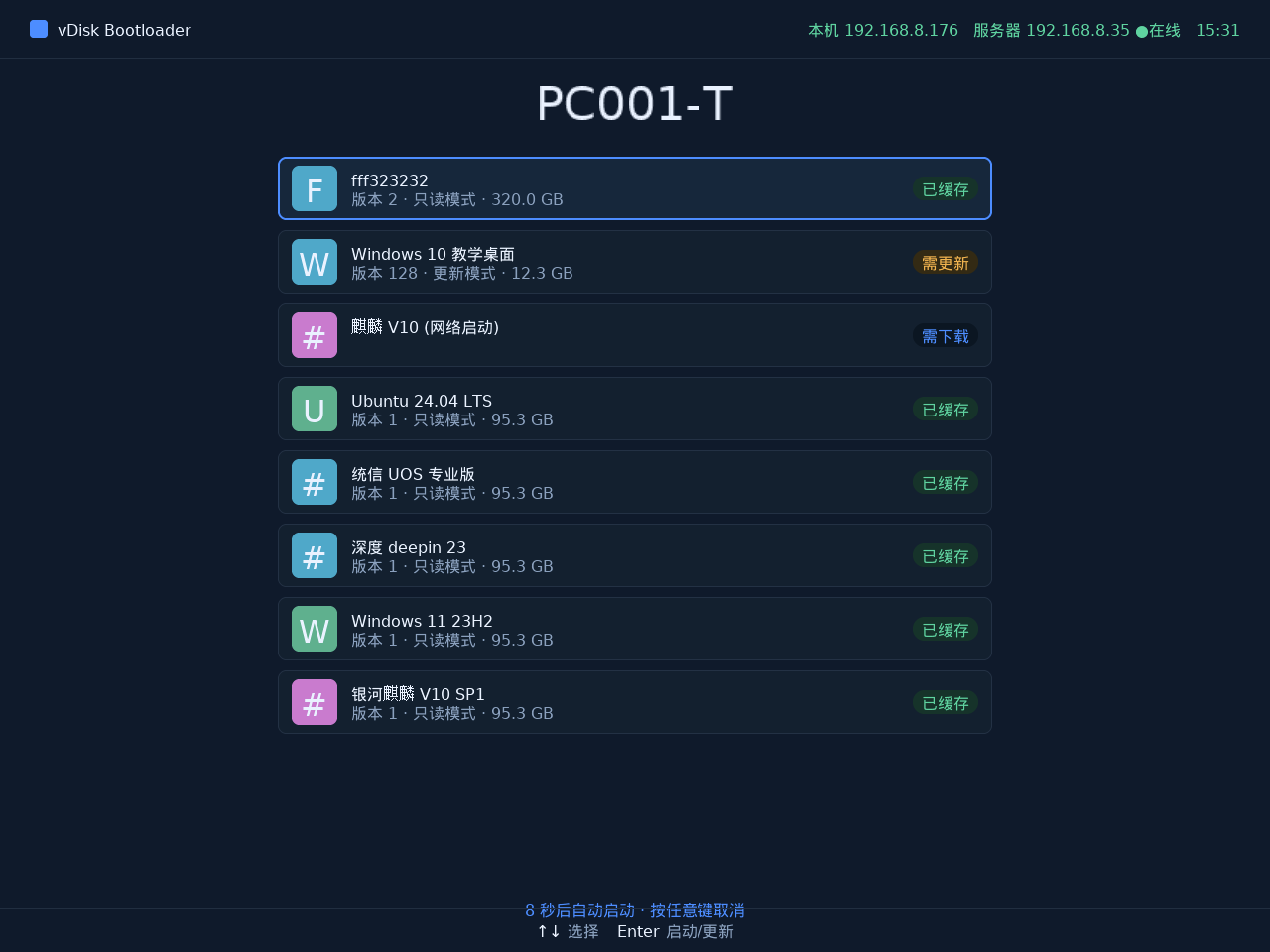
I. Keyboard Shortcuts
| Shortcut | Description |
|---|---|
| Ctrl+H | Open the advanced console for log output |
| Ctrl+D | Delete local cache and attempt network boot (requires the image to support network boot) |
| Ctrl+R | Clear the write data of the selected desktop and boot (requires terminal password) |
| Ctrl+L | Clear the learning data of the selected desktop, reset it, and boot automatically on success (requires terminal password) |
| Ctrl+N | Disable local cache and attempt network boot directly |
| Ctrl+U | Enter Update Mode during network boot (requires console username and password) |
| Ctrl+P | Confirm current update data during network boot — takes effect immediately after confirmation |
| Ctrl+O | Force cancel an update during network boot |
| F7 | Shortcut to enter the ROM. If no local ROM exists, forces boot via the network ROM. |
| Ctrl+X | Force cancel Update Mode. After pressing, changes the access mode to Restore Mode, clears update data and the update environment, and triggers the server to cancel the update. If, upon entering the update, a disk lock failure message appeared, go to Console → Desktop Pool → select the updating image → Force Unlock to perform a forced unlock. Regardless of whether Confirm Update was clicked, this method can restore the terminal state. |
II. Feature Details
Sync All Desktop Access Modes
- If the current system is in Restore Mode and the server has set it to Read-Write Mode, the desktop is automatically set to Read-Write Mode. Select the target desktop/system in the list.
- All other mode transitions are skipped.
No Desktop / All Hidden / Only One Desktop But Download Not Completed
- Automatically enters ROM: When the countdown ends, it will attempt to enter the ROM automatically.
Computer Not Joined / First Boot
- Automatically enters ROM: When the countdown ends, it will attempt to enter the ROM automatically.
No Local ROM
- Attempts to automatically enter the network ROM.
Boot Method
- PXE / Disk boot
QR Code
- Opens a specific webpage on the server. The URL is assembled as: server
http://ip:7080/h5/. You can place an H5 mobile desktop image introduction or portal here.
"(Network Boot)" Appears After a Menu Entry Name
- No local cache exists; execution will proceed as configured by the server via network boot.