How to Set the Terminal Password and What It Is Used For
The terminal password is used for identity verification during local operations on the terminal. For example, before sensitive operations such as forcing a redistribution with Ctrl+D on the boot menu or clearing data, the terminal password must be entered to continue, preventing arbitrary operations.
Go to Desktop -> Terminal Password
After entering the page, the password is masked with asterisks (*) by default. Click "Click to show" below the asterisks to view the current terminal password.
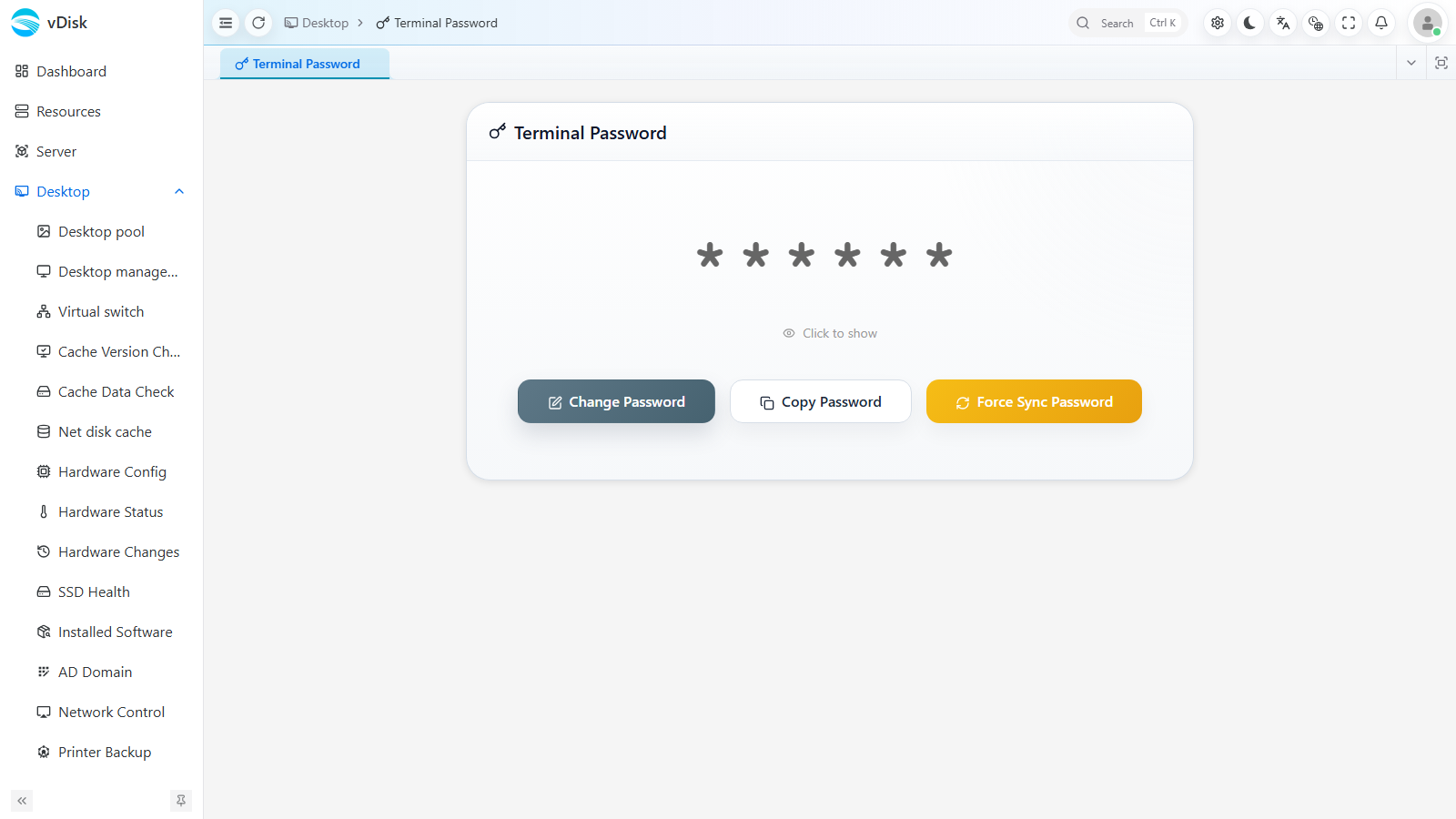
The page provides three operation buttons:
- Change Password: Opens the "Change Terminal Password" dialog; enter a new 6-digit password (New Password), confirm it (Confirm Password), and click OK to save. Used to reset the terminal password.
- Copy Password: Copies the current terminal password to the clipboard for pasting when needed.
- Force Sync Password: Forcibly distributes and syncs the console's current terminal password to the terminal, ensuring the password stored locally on the terminal matches the console.
Change Password Dialog
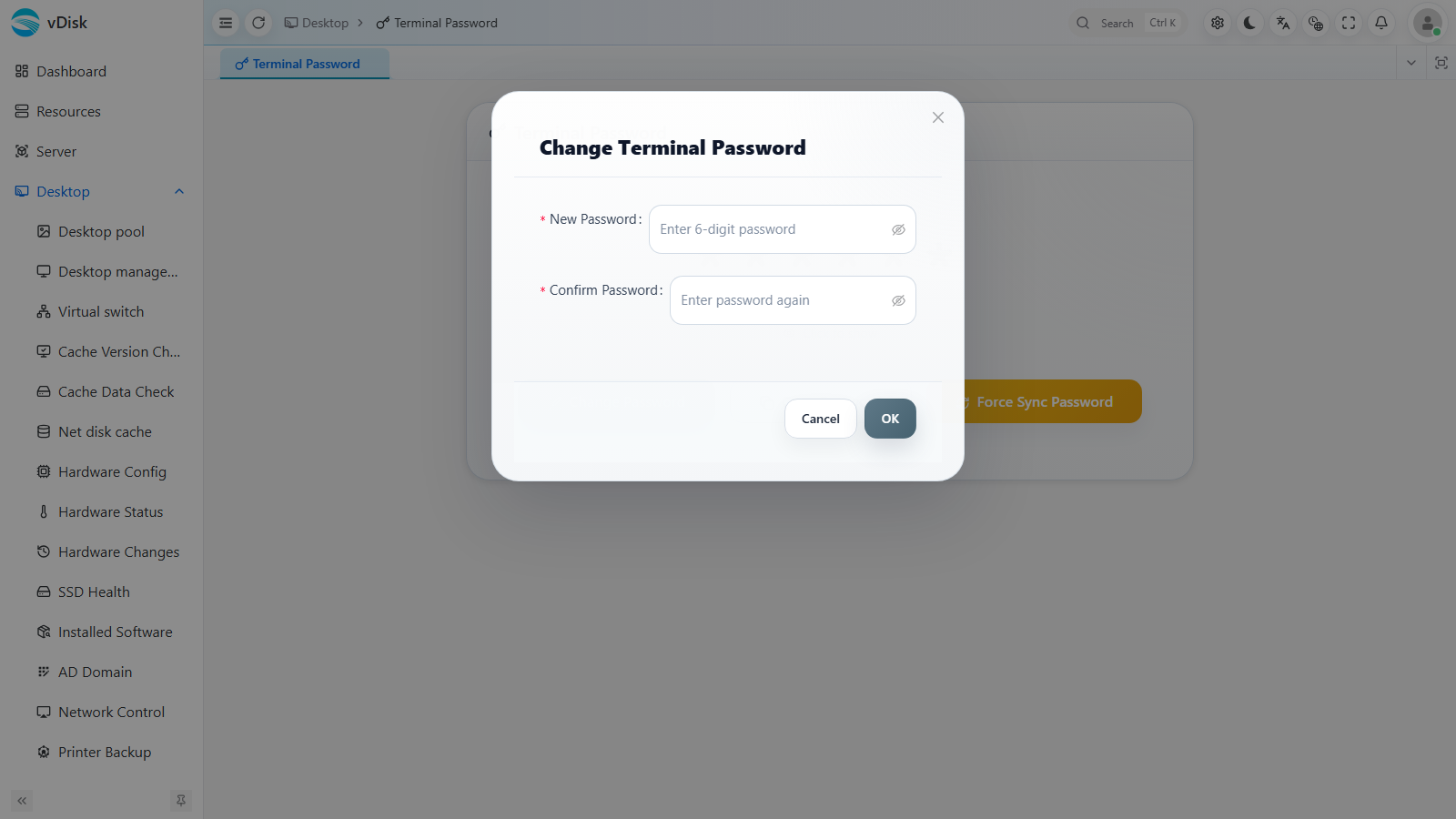
The new password is 6 digits and the two entries must match; click OK to take effect.
Viewing in the Mini Program
Besides the console, you can also view the corresponding terminal's password in Mini Program -> Terminal Password, making it convenient for on-site operations staff to use temporarily.