How to Check the SSD Health Status Within a Group
Go to Console -> Desktop -> SSD Health
Go to the Desktop -> SSD Health page and select a group tab at the top to view the health status of each computer's local SSD within that group. The data comes from the SSD's SMART information.
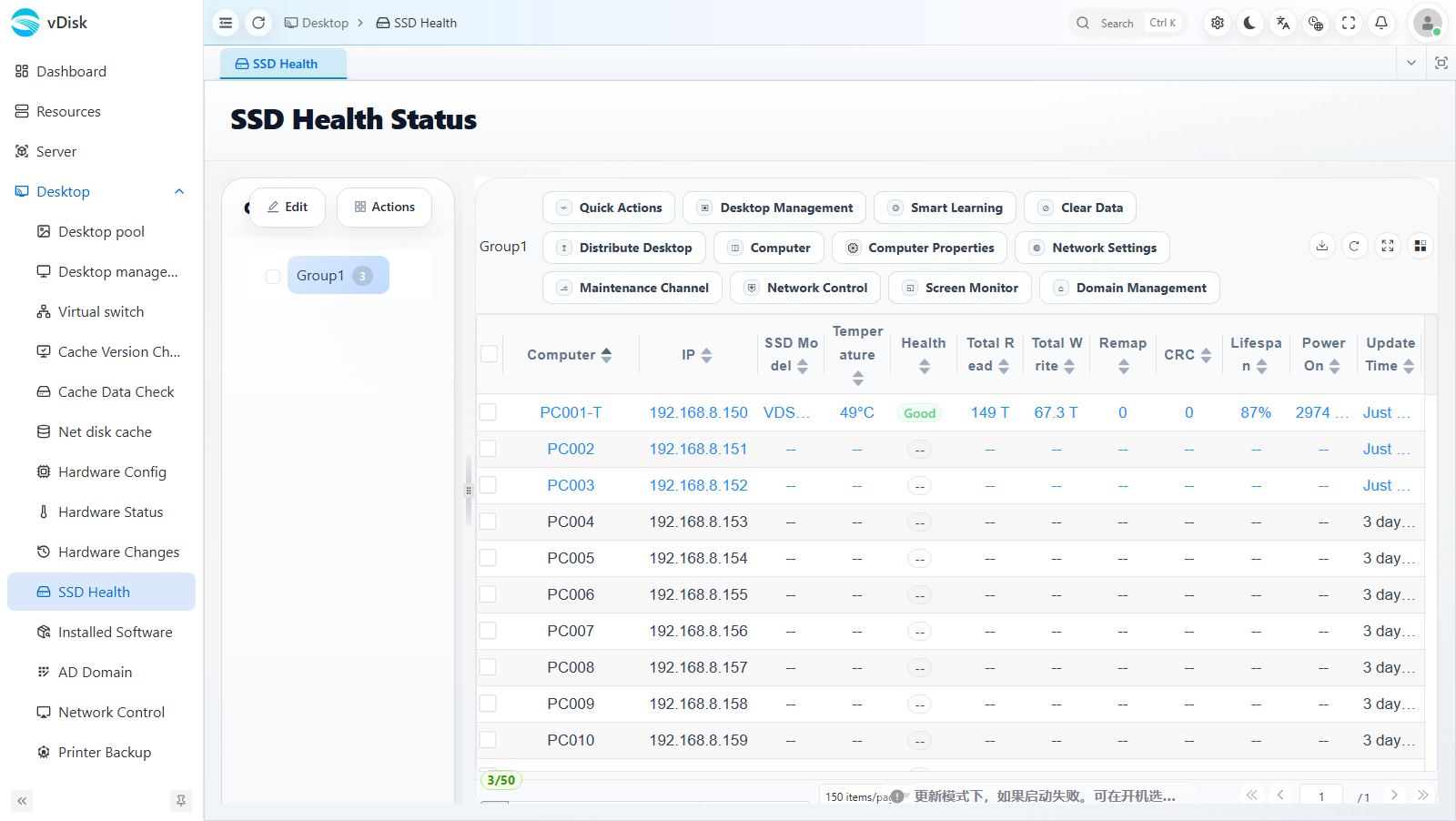
List Field Descriptions
| Column | Description |
|---|---|
| Computer | Computer name |
| IP | Computer IP address |
| SSD Model | Disk model; since SMART is passed through from the virtual disk, the model may be shown as the virtual disk model |
| Temperature | Current SSD temperature |
| Health | Overall SSD health percentage |
| Total Read / Write | Cumulative data read from / written to the disk |
| Remap | Reallocated sector count |
| CRC | CRC error count |
| Lifespan | Estimated remaining lifespan |
| Power On | Cumulative power-on time |
| Update Time | Collection time of this record |
Apart from the model name, all values are real SMART data from the disk.
SMART information is passed through from the virtual disk, so the model may be shown as the virtual disk model.
All information comes from the SSD's SMART data.
You can also use a disk monitoring tool locally to view the same information.
Disk cache must be enabled to obtain this data; with pure network boot (no local cache disk), this information cannot be read.
Likewise, the SSD health data can be exported using the export button at the top right of the list.