How to View and Export Computer Hardware Configurations
The rebuilt console has organized hardware-related features into the left menu: Desktop -> Hardware Config / Hardware Status / Hardware Changes. These three pages are used respectively to view terminal hardware parameters, real-time running status, and hardware change history, all of which support export.
Desktop -> Hardware Config
Summarizes the hardware parameters of each terminal in a group, with columns including: Name, MAC, Mainboard, CPU, Memory, NIC Speed, GPU, Disk, Power-On Duration, and Update time. You can export the list using the export button at the top right.
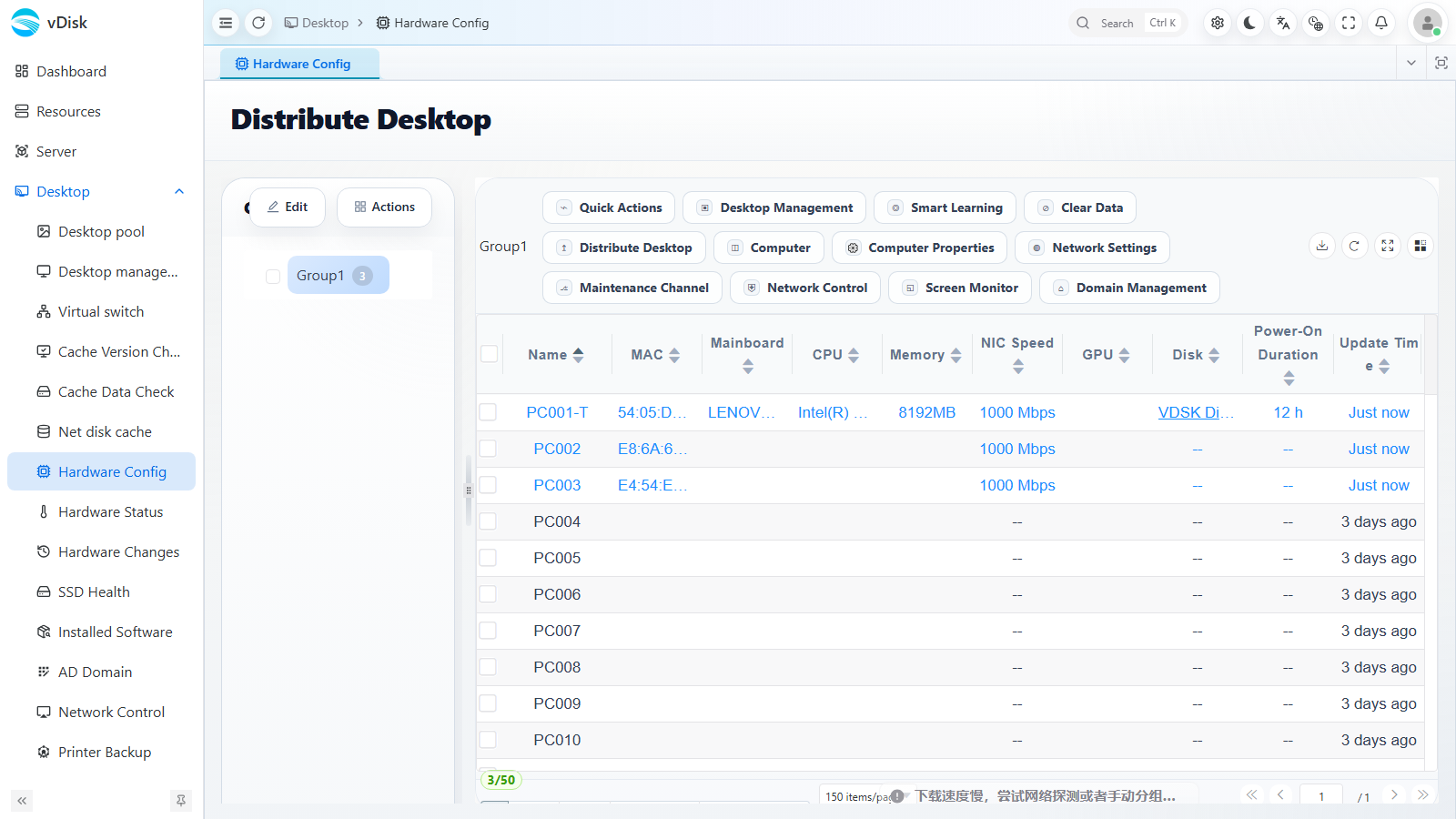
The terminal must have the graphics driver installed; otherwise the GPU model cannot be retrieved.
Supports exporting multiple GPU models if the machine has a discrete GPU.
Desktop -> Hardware Status
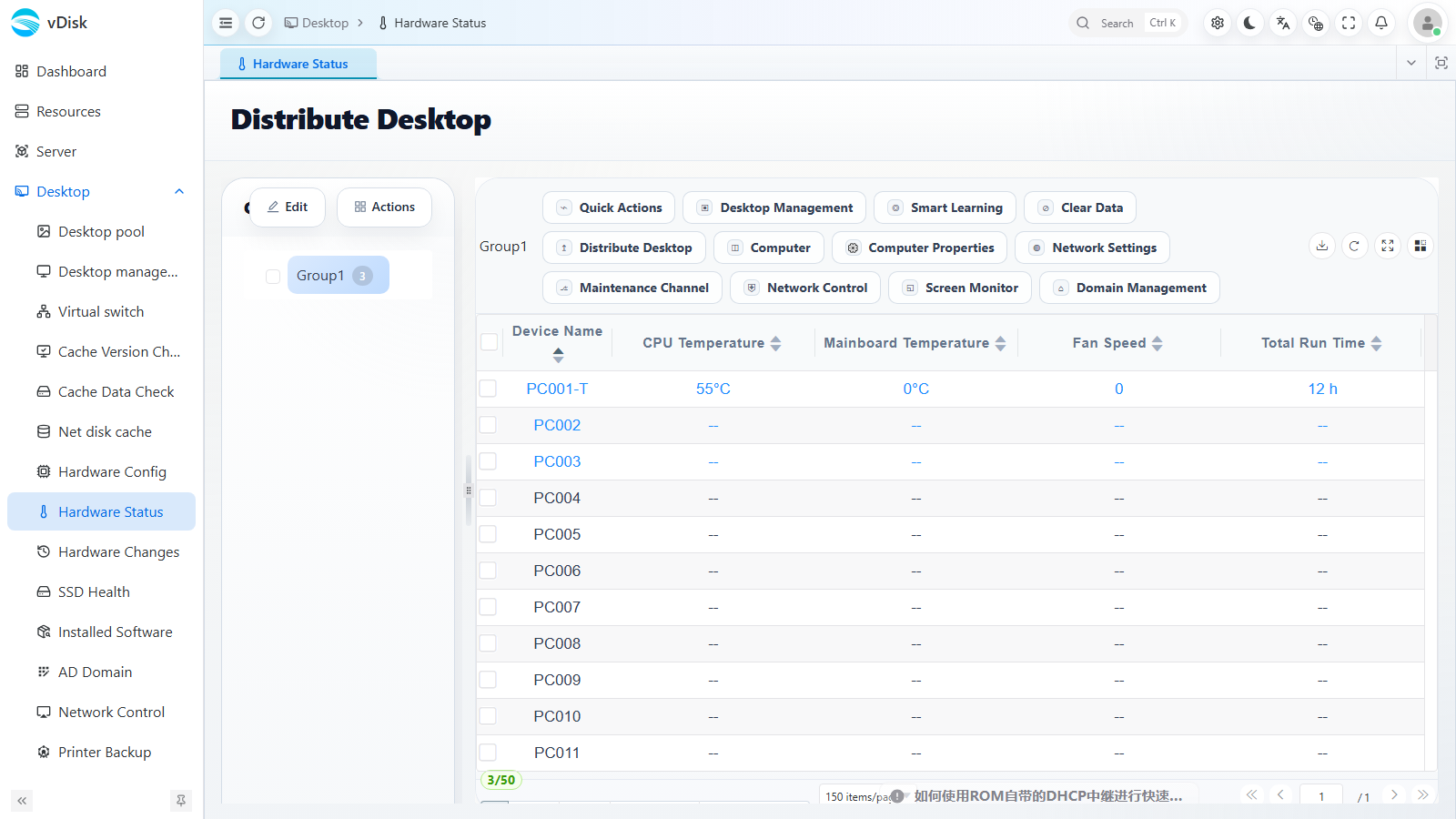
Displays the terminal's running status in real time, with columns including: Device Name, CPU Temperature, Mainboard Temperature, Fan Speed, Total Run Time, etc. This makes it easy to inspect temperature, fan, and other metrics and promptly find terminals with cooling abnormalities. Export is likewise supported.
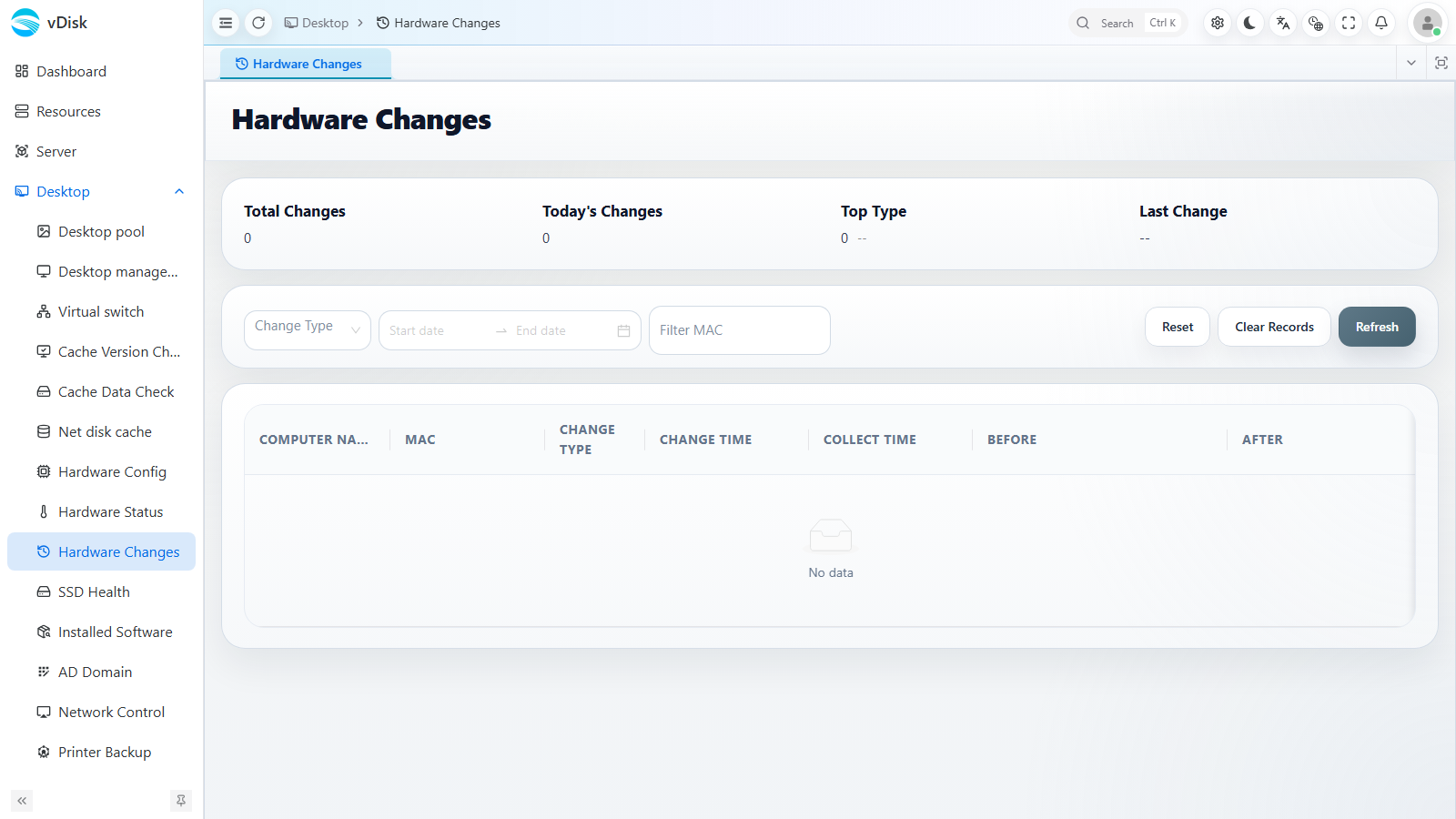
Desktop -> Hardware Changes
Records the change history of terminal hardware, automatically comparing the collected hardware information and generating a change record when a terminal's mainboard, NIC, memory, disk, or other component is replaced. The top of the page summarizes Total Changes, Today's Changes, the Top Type of change, and the Last Change; the list shows Computer Name, MAC, Change Type, Change Time, Collect Time, and the Before / After comparison values. You can filter by change type and other criteria, and export is supported, making it convenient to trace assets and investigate unauthorized hardware replacement.